
Restore purchases not working
The most common situation: you have an active Forktastic Pro subscription, but Pro features aren’t unlocked after reinstalling the app or signing in on a new device. Restore purchases is the normal fix, but sometimes it doesn’t work first try.
This page covers the diagnostic flow.
Step 1 — Verify subscription is actually active
Before troubleshooting Forktastic, confirm the subscription exists at the store level.
iOS
- Settings → Your Apple ID → Subscriptions.
- Look for Forktastic Pro in the list.
- If it’s there with a future renewal date → active. Proceed to Step 2.
- If it’s not listed at all → you don’t have an active subscription on this Apple ID. Either:
- You’re signed into a different Apple ID than the one that subscribed → switch.
- The subscription was cancelled or lapsed → see Cancel for re-subscribe.
Android
- Play Store → Account → Subscriptions.
- Look for Forktastic Pro.
- Same logic as iOS — confirm it exists and is active.
Web
- Open Forktastic on
app.forktastic.com. - Sign in.
- Options → Subscription details should show the status.
Step 2 — Confirm you’re signed into the right Forktastic account
Forktastic subscriptions are tied to your Forktastic account email. If you signed in with a different email than the one you subscribed under, restore won’t find anything.
- Options → Account settings → check the email at the top.
- If wrong, sign out and sign in with the correct email.
If you signed up with Apple or Google and aren’t sure what email is on the account:
- Options → Account settings → Security → Sign-in methods.
- The linked Apple / Google account is shown, along with the canonical email.
Step 3 — Run Restore purchases
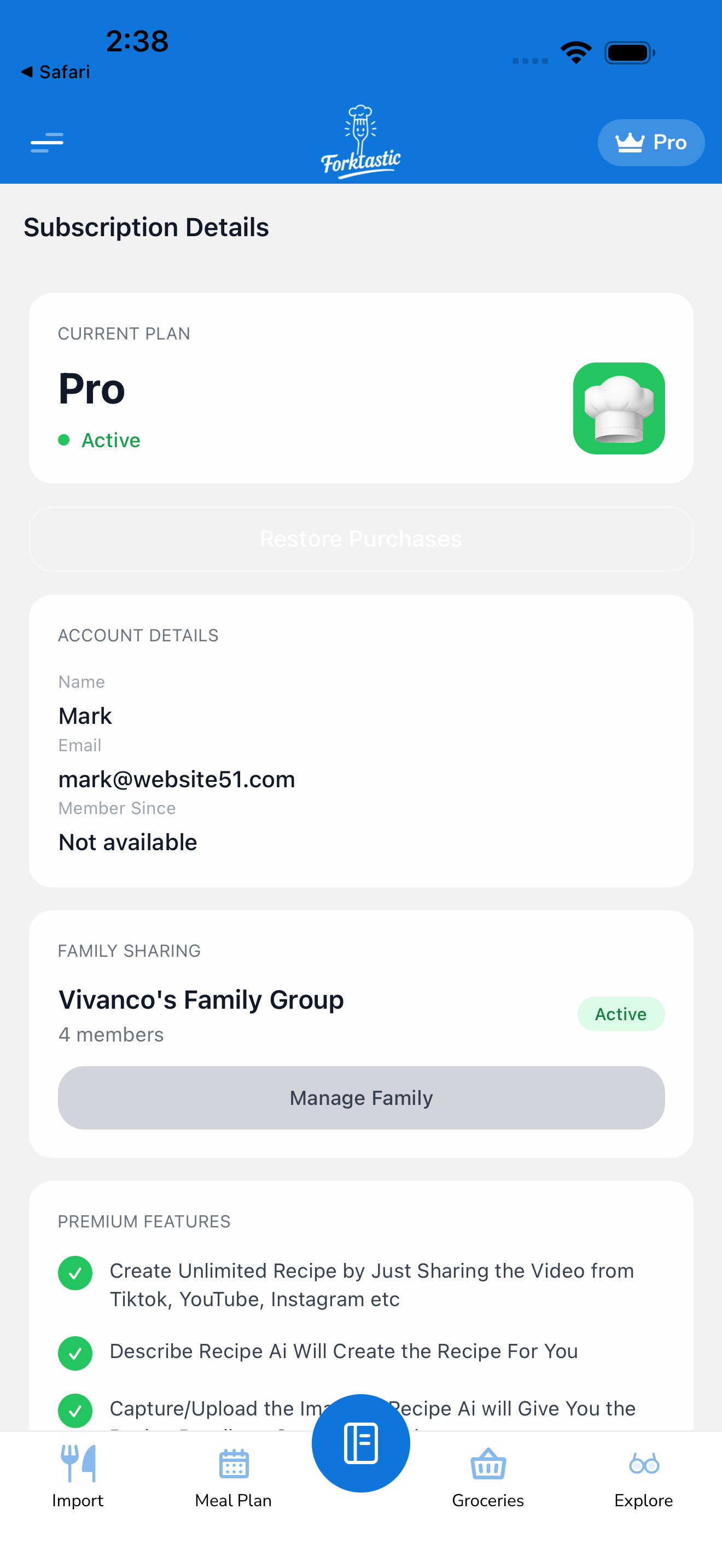
- Options → Subscription details.
- Tap Restore purchases.
- Wait 5–10 seconds.
- Forktastic queries the store; result shows.
If it says “Subscription restored” but Pro features are still locked, see Step 5.
If it says “No active subscription on this account”:
- The store account currently signed in doesn’t have a Forktastic Pro subscription. Either you’re on the wrong Apple ID / Google account (switch), or the subscription was on a different platform (see Step 4).
Step 4 — Cross-platform subscriptions
If you subscribed on one platform (e.g., iOS) and you’re trying to restore on another (e.g., Android), restore on the new platform won’t find it — each app store only sees its own subscriptions.
Workaround: Pro entitlement is synced based on your Forktastic account, not platform. As long as you’re signed into the same Forktastic email, Pro should auto-activate on every platform.
-
If Pro isn’t active despite same email: the Forktastic → store linking may be stale. Sign out and back in on the platform where Pro isn’t working.
-
For web users with iOS / Android subscription: web reads entitlement from your Forktastic backend. If it’s not picking up the subscription, the backend hasn’t received the entitlement update from the store yet. Wait an hour, sign out / in again.
Step 5 — Pro features still locked after successful restore
Sometimes the restore succeeds but the UI doesn’t refresh.
- Sign out of Forktastic (Options → Account settings → Sign out).
- Force quit the app.
- Re-open and sign in.
- Pro features should now be unlocked.
If they’re still locked:
- Try a different Pro feature. Sometimes one feature’s check is cached separately. If Photo Match is locked but family-share works (or vice versa), the feature-specific check needs a refresh.
- Update the app. Old app versions can have stale entitlement check logic. Update to the latest version from the App Store / Play Store.
Step 6 — Server-side sync issues
Rarely, the store and Forktastic backend get out of sync (you have an active subscription with Apple, but Forktastic’s records show you as expired).
This requires manual intervention:
- Open Options → Subscription details.
- Take a screenshot of the page.
- Open App Store → Subscriptions → Forktastic Pro (or Google Play equivalent).
- Take a screenshot of that page too.
- Email support@forktastic.com with both screenshots, your account email, and a description of what’s happening.
Support can manually re-sync the entitlement.
Subscription paused / on hold
Some store features (e.g., Google Play subscription pause) put a subscription in a non-active state that looks like “expired” from Forktastic’s side. Resume the subscription in the store, then run restore.
Refund requests
If you’re seeking a refund (not just a restore), see Cancel → Refunds.
Related
- Restore purchases — the normal flow
- Manage your subscription
- Upgrade to Pro