
Check items off as you shop
Forktastic’s grocery list is built for active shopping — fast tap targets, persistent state across devices, and the option to keep checked items visible or hide them as you go.
Check off an item
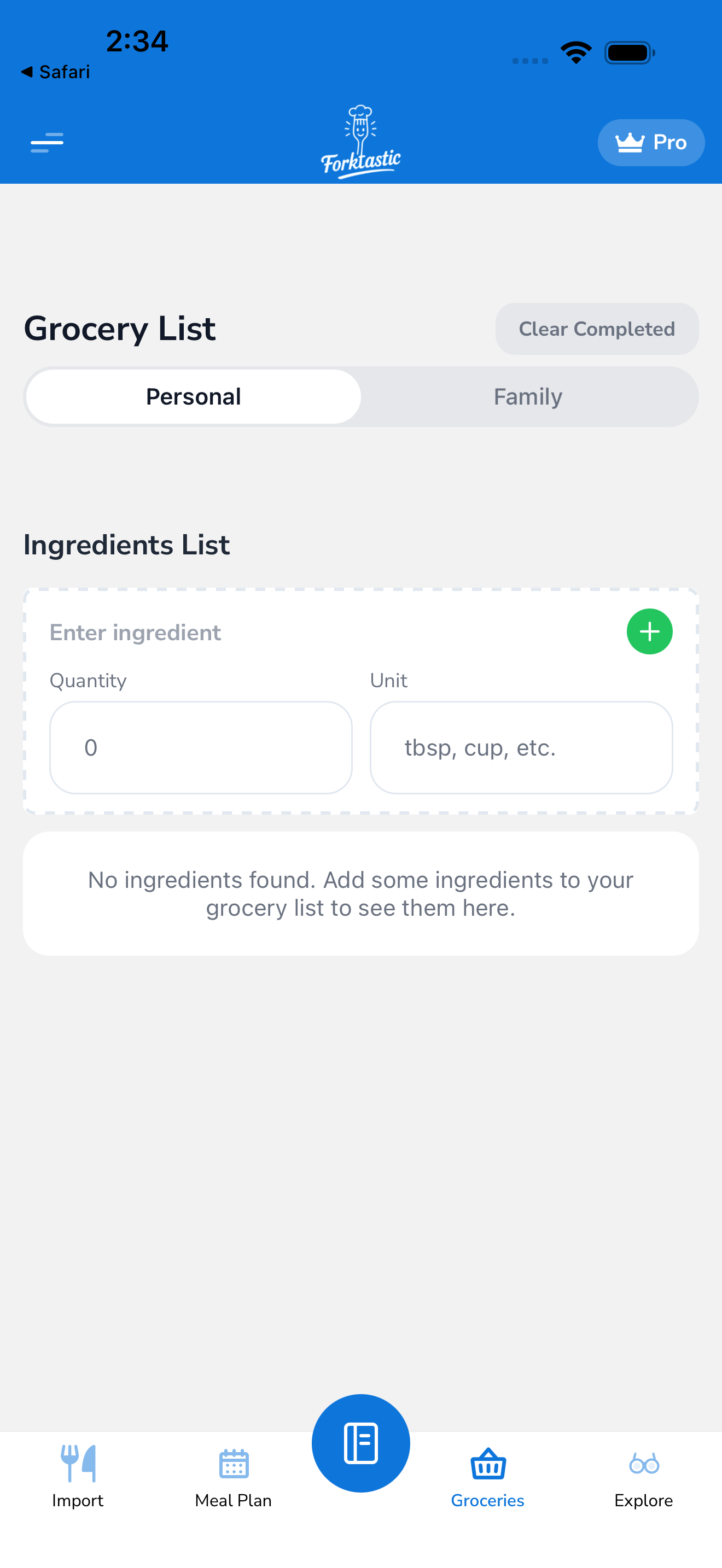
In the Grocery tab:
- Tap the checkbox to the left of any item → marks it checked.
- The item gets a strikethrough and dims.
- Total count at the top updates (“12 of 18”).
Tap again to uncheck if you marked something by accident.
What “checked” does
Two configurable behaviors. In Options → Grocery → Checked items:
- Keep visible (strikethrough) — default. Checked items stay in the list with strikethrough so you can see what you’ve gotten.
- Move to bottom — checked items collapse to a “Checked” section at the bottom of each category, keeping unchecked items more visible.
- Hide immediately — checked items disappear from view (they’re still in the list, just hidden).
Pick whichever feels best for your shopping style. Most users prefer the default (visible with strikethrough) since it helps with double-checking at checkout.
Done shopping — clear the list
When you’ve found everything (or everything you’re going to find on this trip):
- Tap More → Clear checked items. Removes all checked items from the list. Unchecked items stay (for the next trip, or to add to another store run).
- Or, More → Archive trip. Removes all items (checked and unchecked) and saves the trip to Shopping history. Useful if you want a record of what you bought.
- Or, More → Clear all. Empties the list entirely; nothing saved. Quick reset.
Shopping history
If you archive trips, you can review them later:
- Grocery tab → More → Shopping history.
- List of past archived trips by date.
- Tap any trip to see what was on it.
Useful for:
- “What did I buy last week?” reflection
- Reusing a list (tap Re-add to grocery on a past trip)
- Family record (if your family-share the grocery list)
Sync across devices
Your grocery list syncs in real-time across every device you’re signed into. If your partner checks off “milk” on their phone at the store while you’re checking off “bread” at home, both updates appear on both devices within a couple seconds.
This makes split-shopping (one of you at the store, one of you adding things from home) effortless.
Share the grocery list with family
The grocery list itself is not shared with family by default — it’s personal, even within a family group. To share:
- Options → Grocery → Share with family.
- Pick which family.
Now the entire family group sees and edits the same grocery list. Caveats:
- Anyone can add or remove items.
- Anyone can check items off.
- Items added by a specific person show their initial as a tiny badge so you can tell who added what.
You can turn family sharing off any time; the list reverts to private.
Print or send the list
If someone else is doing the shopping (and they don’t use Forktastic):
- Grocery tab → More → Share list as text — copies a plain-text version to clipboard; paste into a message or email.
- Grocery tab → More → Save as PDF — exports the list as a printable PDF.
Both formats preserve quantities, units, and category groupings.