
Open the meal plan
The Meal Plan tab is the second icon in the bottom bar. It’s a weekly calendar where each day has slots for breakfast, lunch, dinner, and a snack — you drag recipes into the slots, and Forktastic shows you a running picture of what you’re eating that week (including aggregated nutrition).
If you’ve never opened the Meal Plan tab before, it starts empty — no recipes scheduled, no nutrition to show.
The week view
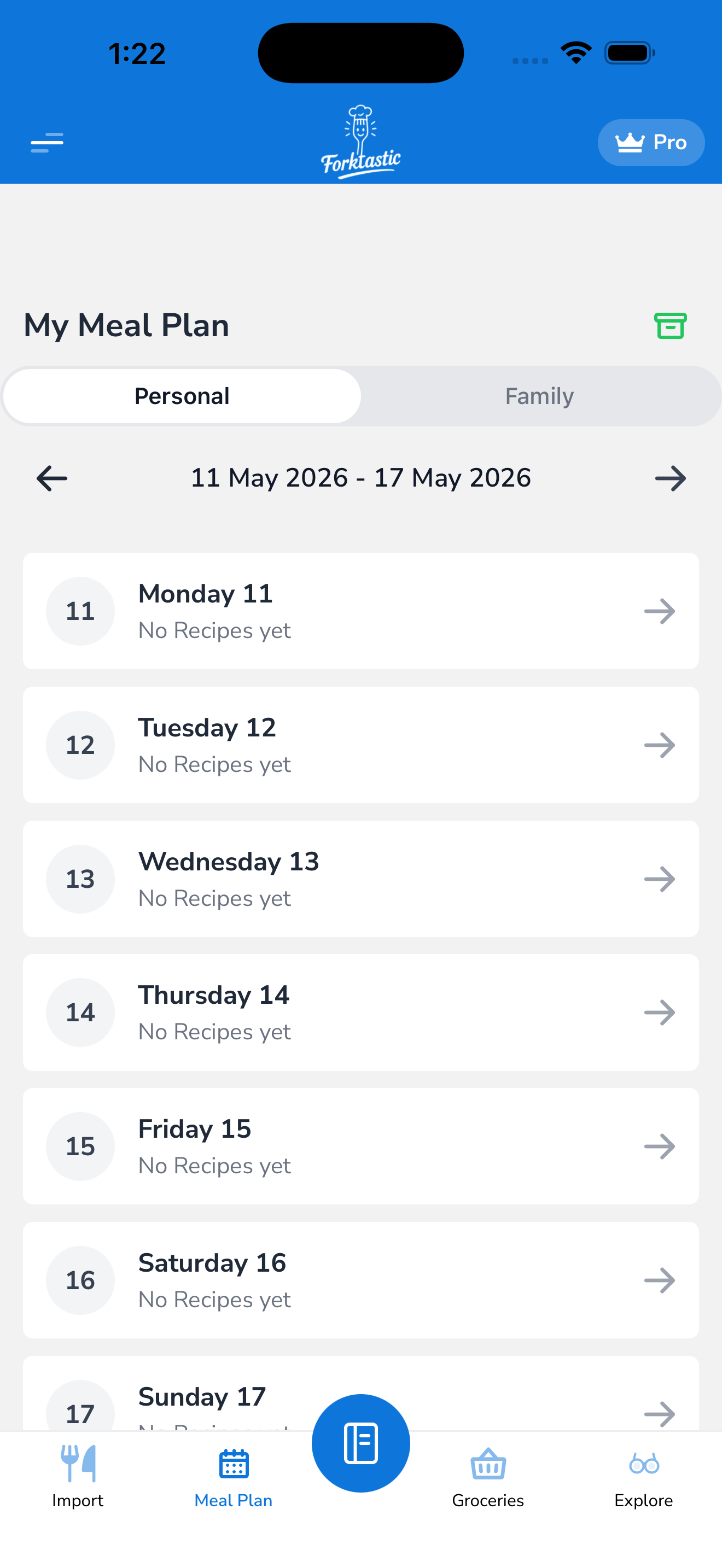
The default view is a week with:
- Day headers — Mon, Tue, Wed, Thu, Fri, Sat, Sun, with today highlighted in brand cyan
- Date strip — date numbers for each day
- Four meal rows — Breakfast, Lunch, Dinner, Snack
- Cells — each cell is a day × meal slot. Empty cells show a faint ”+”. Filled cells show the recipe’s cover image + title.
Tap a cell to view what’s there or add a recipe. See Assign recipes to slots.
Navigating between weeks
- Swipe left or tap the right arrow in the week header → next week
- Swipe right or tap the left arrow → previous week
- Tap the date range header → jumps to a date picker. Pick any date to navigate to that week.
The current week is always one tap away — tap Today at the bottom of the screen to return.
The day view
If the 7-day grid feels cramped on a phone, switch to day view:
- Tap the view toggle in the top-right (calendar icon).
- Pick Day.
You’ll see one day at a time, with the four meal slots stacked vertically. The slots are larger, and you can see the recipe details (servings, prep time) inline without tapping in.
Swipe left/right to move day-by-day.
Meal slots
By default, each day has four slots: Breakfast, Lunch, Dinner, Snack. You can:
- Hide unused slots — if you never plan snacks, hide that row in Options → Account settings → Meal slots.
- Add a custom slot — if you want a “Dessert” or “Second breakfast” slot.
Custom slot configuration is account-wide; you can’t have different slots on different days.
Nutrition summary
Tap the nutrition icon (chart icon) at the top of the week view, or scroll to the bottom of the day view, to see:
- Per-day totals — calories, protein, carbs, fat
- Per-week totals — same metrics summed across the week
- Targets — if you’ve set daily nutrition goals in Options → Account settings, you see how you’re tracking
See Weekly nutrition view for the details on what’s calculated and how.
Generate a grocery list from the meal plan
The single most-used follow-up action: turn your meal plan into a shopping list.
- From the week view, tap More → Make grocery list.
- Forktastic pulls every ingredient from every recipe in the week, consolidates duplicates, and adds them to your grocery list.
See Auto-populate grocery from meal plan.
Apple Health logging
On iOS, you can also push your meal plan to the Apple Health app. See Log meals to Apple Health.