
Start Cook Mode
Cook Mode is Forktastic’s hands-free cooking experience. It enlarges instruction text, keeps your phone’s screen awake, lets you navigate steps by voice, and shows an interactive ingredient checklist. It’s the mode you actually cook in.
The visual step-by-step is available on the free tier. Voice control is a Pro feature.
Start Cook Mode
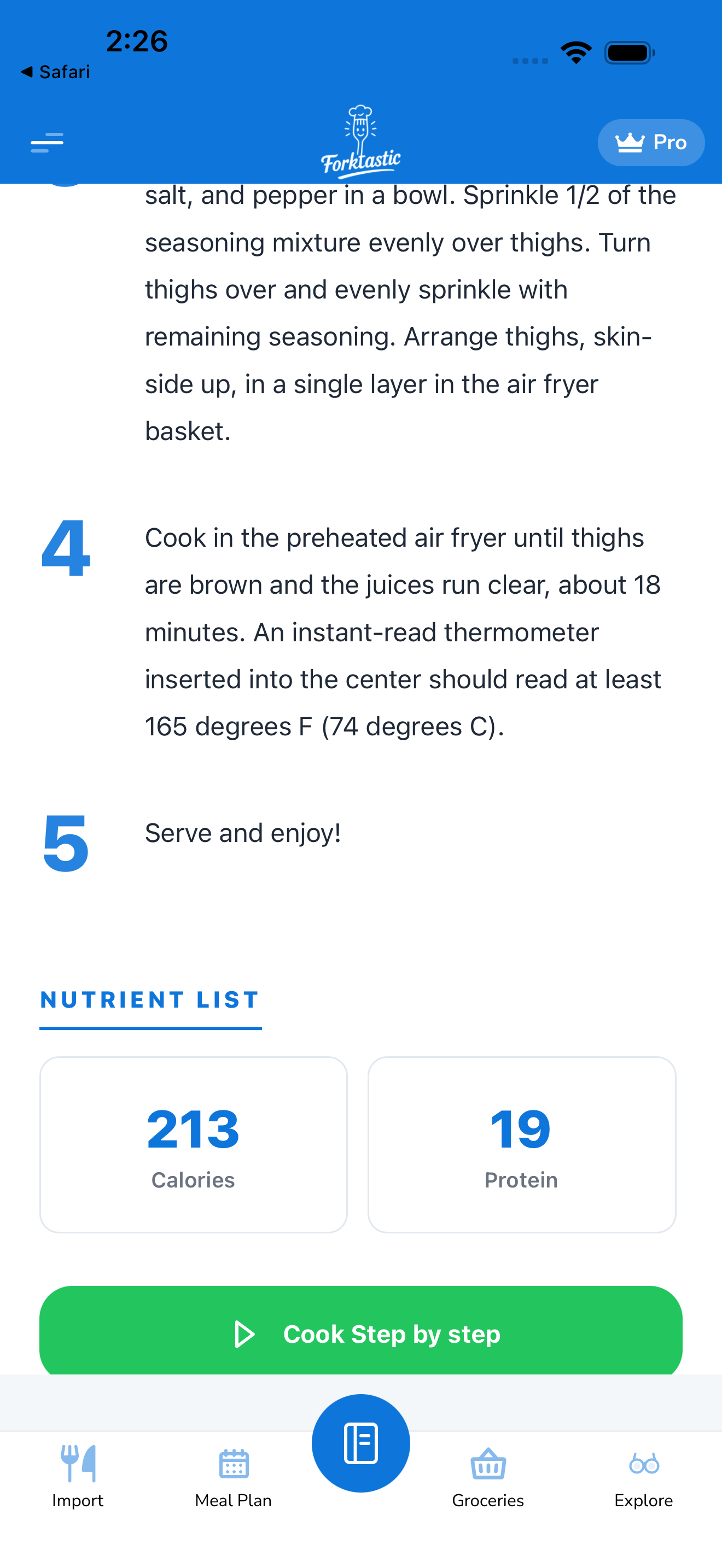
- Open the recipe you want to cook.
- Tap Cook in the action bar (chef-hat icon or “Cook” label).
- Cook Mode launches in full-screen, replacing the normal recipe view.
The first time you start Cook Mode, Forktastic asks for microphone permission (for voice control). Allow it if you want to use voice; you can decline and still use Cook Mode with touch navigation.
What changes in Cook Mode
Once Cook Mode is active:
- The screen stays awake. Your device’s auto-lock is suspended; the display won’t turn off mid-recipe.
- Text gets bigger. Instructions render at a larger font size, readable from across the kitchen.
- One step at a time. Instead of a scrolling list, you see one numbered step at a time, with Next / Previous controls.
- Voice commands are listening (Pro). The microphone icon turns blue. See Voice commands.
- An ingredient checklist appears in a collapsible panel at the bottom. Tap an ingredient to check it off.
- A timer launcher is one tap away. Tap Set timer to create a timer for the current step.
Navigate between steps
- Tap Next / Previous at the bottom of the screen
- Swipe left for next, swipe right for previous (more natural while cooking)
- Voice (Pro): say “next”, “previous”, “repeat”, “go to step 5”, etc. See Voice commands.
See the whole recipe at once
Tap All steps in the top bar to switch to the full-recipe view (still in Cook Mode — large text, keep-awake — but scrollable). Tap a step number to jump back to single-step mode at that step.
Exit Cook Mode
Tap Done in the top bar, or swipe down from the top of the screen.
If you’ve checked off ingredients and Forktastic detects you’ve gone through all steps, it prompts:
- Finished cooking? — confirms you completed the recipe (logs as cooked, prompts for rating, sends family-feed event)
- Save progress and exit — saves your step position and checklist state so you can resume later
- Exit without saving — just closes Cook Mode; no state saved
Resuming an interrupted cook
If you tap Save progress and exit, the recipe shows a “Resume cooking” banner the next time you open it. Tap Resume to re-enter Cook Mode at the same step with your previous checklist intact.
This is useful for long recipes (bread, slow-cooked stews) where you start, walk away, and come back hours later.
Cook Mode on web
The web app at app.forktastic.com supports Cook Mode too — same large-text, step-by-step view. Voice control on web works in Chrome, Edge, and Safari but requires explicit microphone permission per session.
Related
- Voice commands — full command list
- Large text and keep-awake — what changes for vision
- Step-by-step view — the single-step navigation experience