
Assign recipes to meal slots
There are three ways to schedule a recipe into your meal plan: from the meal plan itself, from a recipe screen, or by drag-and-drop on web.
From the meal plan (most common)
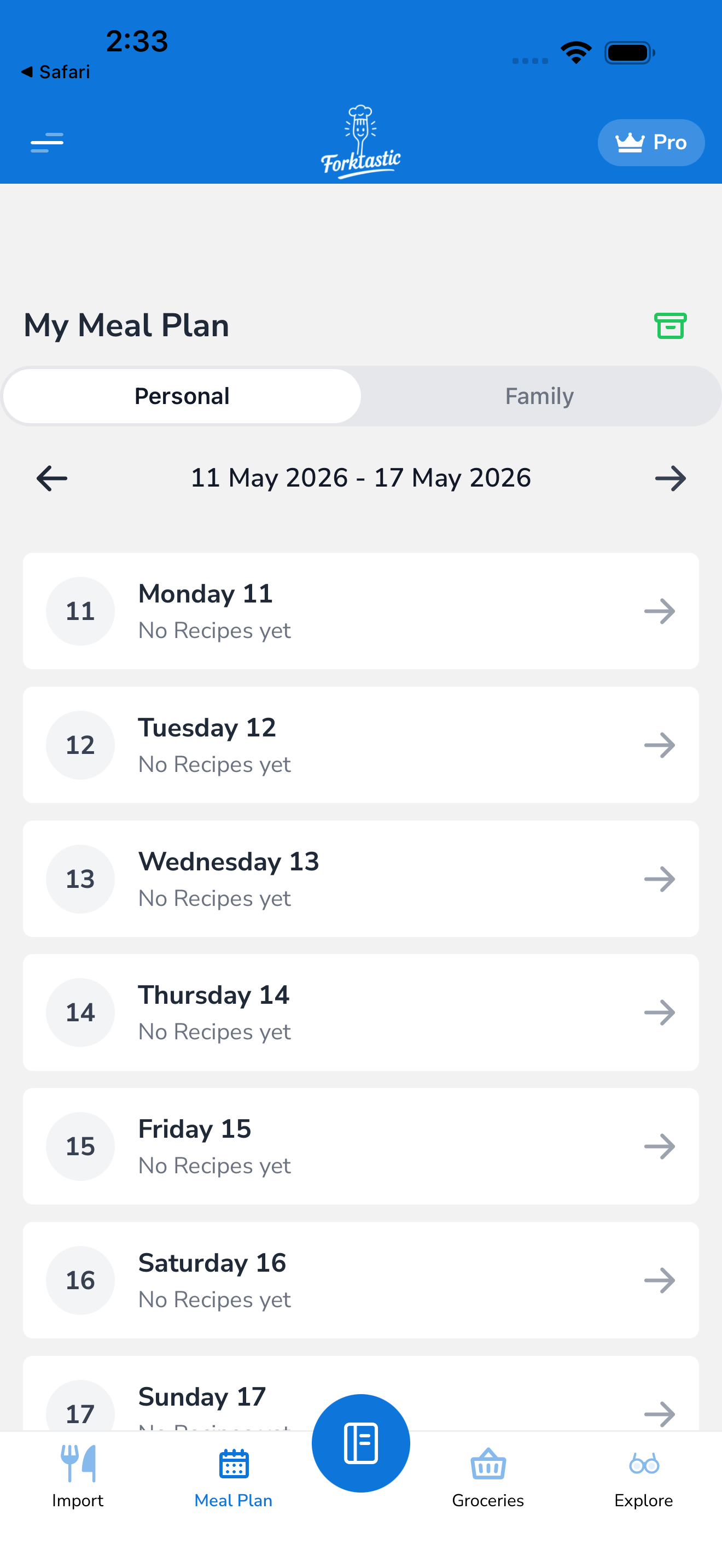
- Open the Meal Plan tab.
- Tap an empty slot (the ”+” cells).
- A recipe picker opens, showing your cookbooks. Use the search bar to find a specific recipe, or browse by cookbook.
- Tap the recipe you want.
- It’s scheduled — the slot now shows the recipe’s cover image and title.
For a slot that already has a recipe, tap the slot to see options:
- View recipe — opens the recipe detail
- Replace — swap in a different recipe
- Remove — empty the slot
- Change servings — useful if you’re cooking for fewer/more people that day
From a recipe screen
If you’re looking at a recipe and decide to schedule it:
- Open the recipe.
- Tap Add to plan in the action bar.
- A date/slot picker opens. Pick the day and meal slot.
- Optionally adjust servings for this occurrence (defaults to the recipe’s saved servings).
- Tap Schedule.
The recipe is added to your meal plan for that day/slot.
Drag-and-drop (web only)
On app.forktastic.com:
- Open the meal plan and a cookbook side by side (the web layout lets you keep both visible).
- Drag a recipe tile from the cookbook into a meal slot.
- The recipe is scheduled.
You can also drag between slots on the meal plan to move a scheduled recipe to a different day or meal.
Schedule the same recipe multiple times
A recipe can be scheduled on multiple days/slots simultaneously — useful for leftovers (“Tuesday dinner, Wednesday lunch”) or repeating favorites.
Each scheduled occurrence is independent: you can have different servings, mark cooked separately, etc. Editing the source recipe updates the recipe screen but not the meal plan occurrences (those are snapshots).
Bulk assign
If you want to fill in a whole week at once:
- From the meal plan week view, tap More → Bulk assign.
- The bulk-assign wizard walks you through each empty slot, asking “What for [day/slot]?” — pick a recipe, tap Next.
- Confirm at the end.
This is the same pace as one-at-a-time but reduces tap-back-and-forth between meal plan and picker.
Auto-suggest recipes
Tap the ✨ Suggest button in any slot to have Forktastic propose 3 recipes based on:
- Your dietary preferences
- What you cooked recently (variety bias)
- Time of day (breakfast suggestions skew toward breakfast)
- Your highly-rated recipes (favorites get prioritized)
Tap Use on a suggestion, or Refresh for another set.
Auto-suggest is a Pro feature.
Marking a meal “cooked”
After you cook a scheduled recipe, you can mark it cooked:
- Tap the slot.
- Tap Mark cooked.
This triggers:
- The recipe’s “last cooked” timestamp updates (useful for variety filtering)
- A family feed event if the cookbook is family-shared
- An Apple Health log entry (if Apple Health logging is enabled)
- A gentle prompt to rate the recipe (dismissible)
Cook Mode also auto-marks-cooked when you finish — see Start Cook Mode.