
Make a PDF cookbook
A PDF cookbook turns a selection of your Forktastic recipes into a single, printable, shareable PDF. It’s the right format for:
- Printing a personal cookbook to give as a gift
- Sending a curated recipe collection to a relative who doesn’t use apps
- Archiving a special-occasion collection (a wedding shower meal, holiday menu)
PDF cookbooks are a Pro feature. Single-recipe PDF export is available on the free tier — see Share a recipe.
The five steps
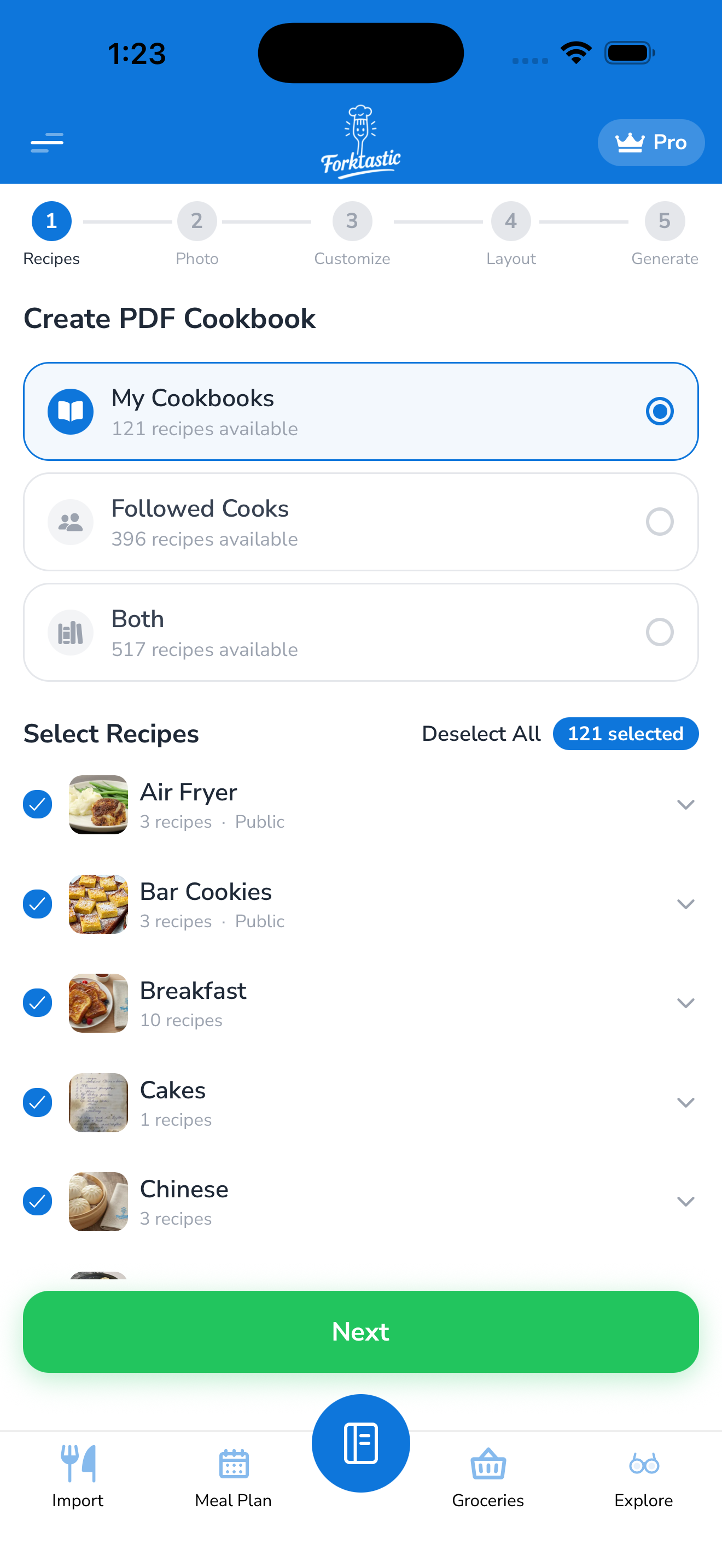
Forktastic walks you through five steps:
- Select recipes and cookbooks
- Customize (book title, author, intro text)
- Choose a layout
- Choose a cover style
- Generate
Each step takes ~30 seconds. The whole thing is usually done in 3–5 minutes.
Step 1 — Select recipes and cookbooks
- Open the Cookbook tab → More → Make PDF cookbook.
- The selection screen opens with a list of all your cookbooks.
- Tap a cookbook to include all its recipes, or tap > to drill in and pick individual recipes.
- Use the search bar to find specific recipes from any cookbook.
- The header shows your running count (“23 recipes selected”). Tap Next.
Step 2 — Customize
- Book title — what the PDF is called (defaults to the cookbook name)
- Author — defaults to your Forktastic display name; change to a different name (e.g., “From the kitchen of Mark & Helen”) if making a gift
- Subtitle — optional, prints under the title
- Intro text — optional one-page intro before the recipes (good for a dedication or note)
Tap Next.
Step 3 — Choose a layout
Three layout options affect how each recipe page is structured:
- Compact — two recipes per page, smaller fonts. Good for reference cookbooks.
- Standard — one recipe per page, balanced ingredients/instructions columns. Most popular.
- Spacious — one recipe per page with photo, prep notes, and extra whitespace. Best for printing or gift-giving.
Tap a layout card to preview it. Tap Next.
Step 4 — Choose a cover style
Pick a visual style for the front cover:
- Brand — Forktastic-branded cover with the wordmark
- Photo — uses one of your recipe photos as the full-bleed cover
- Minimal — text-only, clean typography
- Vintage — illustrated border, classic cookbook aesthetic
- Bold — large title, bright color
- Blank — no design, just title and author (good if you’ll add a custom cover later)
Tap a style to preview the cover with your title and author already filled in. Tap Next.
Step 5 — Generate
- Forktastic builds the PDF — this takes 10–60 seconds depending on recipe count and whether your cookbook has many photos.
- When complete, you see a preview of the first few pages.
- Tap Save to Files to keep it locally, or Share to send it via the device share sheet (email, AirDrop, messaging app).
The PDF is yours to do whatever with — print at home, send to a print-on-demand service like Lulu or Blurb, email, save in cloud storage.
What the PDF includes
Each recipe page contains:
- Title
- Cover photo (if you have one)
- Servings, prep time, cook time
- Ingredients list (in your preferred units)
- Step-by-step instructions
- Source URL (if imported)
The PDF does not include:
- Your personal notes (private to you)
- Family ratings or reviews
- Nutrition tables (toggle in settings if you want them — see below)
Optional toggles
Before generating, expand the Options section in step 2:
- Include nutrition — adds a per-recipe nutrition panel
- Include cookbook intro pages — if you selected entire cookbooks, each cookbook gets a divider page
- Page size — Letter, A4, A5
Limits
PDF generation is unlimited on Pro. There’s no per-PDF cost; you can generate as many as you want.
The maximum number of recipes in a single PDF is 200. If you have more, generate multiple PDFs (e.g., one per cookbook) and combine them in a PDF tool of your choice.
Related
- Share a recipe — for single-recipe PDFs (free tier supported)
- Free vs Pro — PDF cookbook is Pro