
Auto-populate grocery from a recipe
If you’re about to cook a recipe and don’t have all the ingredients, copy them to your grocery list in one tap. Forktastic transfers every ingredient with its current quantity (respecting your serving adjustments) and units.
Step by step
- Open the recipe.
- Tap Add to grocery in the action bar.
- A confirmation modal opens, showing every ingredient that’ll be added.
- Optional: uncheck any ingredients you already have (the modal has checkboxes per ingredient).
- Tap Add to grocery list.
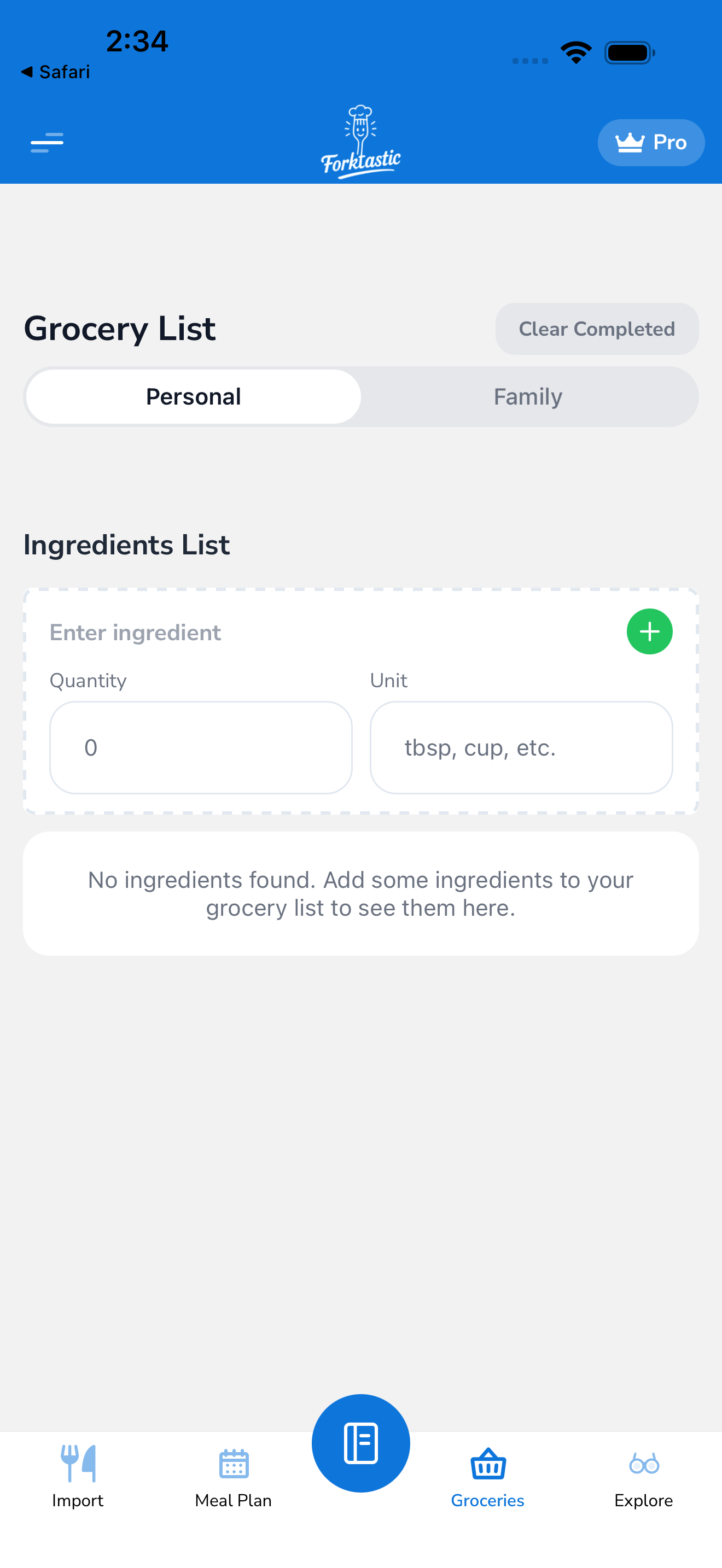
The items appear in your Grocery tab, grouped under the recipe’s name.
Multiple recipes at once
To add ingredients from several recipes:
- Repeat the above for each recipe — they all stack into the grocery list.
- Or, use the meal plan path: schedule the recipes in your meal plan, then run Auto-populate from your meal plan — this consolidates duplicate ingredients across recipes (so “2 cups flour” from one recipe + “1 cup flour” from another becomes “3 cups flour” in your list).
How servings are handled
The quantities added to grocery reflect your current servings for that recipe view. If you scaled the recipe from 4 servings to 8 before adding to grocery, the grocery list gets the 8-serving quantities.
If you change servings after adding to grocery, the grocery list does not update. Add again (or edit the items manually) to reflect new quantities.
Skipping ingredients you have
The confirmation modal is where you’d typically uncheck things like:
- Pantry staples (salt, pepper, olive oil, basic spices)
- Ingredients you bought last shop
- Ingredients listed as “to taste” or “optional”
Unchecking is per-add, not global. If you always skip salt, you can set a pantry exclusion list in Options → Grocery → Pantry items — those ingredients are auto-unchecked by default whenever they appear in an “Add to grocery” modal.
Grouped by recipe
Items added from a recipe are grouped under that recipe’s name in the grocery list (with a small chef-hat icon and the recipe title as a divider). Other items remain in their categories.
If you prefer a flat category view, change Grocery → Sort → By category — recipe groupings are hidden in that view; items are interspersed with everything else.
Remove a recipe from the grocery list
If you decide not to cook a recipe after all:
- Open the Grocery tab.
- Find the recipe group.
- Tap the … menu on the recipe group header → Remove this recipe’s items.
Or, swipe left on the recipe header → tap Remove.
All items added from that recipe are removed in one go. Any items you’d manually added (not part of the auto-populate) stay.
What if a recipe ingredient says “1 large onion”?
Forktastic transfers ingredient text verbatim. “1 large onion” becomes “1 large onion” in your grocery list — you don’t need it converted to grams. Same with “a handful of basil” or “1 lemon, zested and juiced” — these are transferred as-is.
Related
- Add items manually — for non-recipe items
- Auto-populate from your meal plan — for multiple recipes consolidated
- Adjust servings — what scaling applies before add