
Create a family group
A family group lets you share cookbooks and recipes with the people you cook with — a partner, your kids, a roommate, a parent. Members can browse each other’s recipes, see what was cooked recently in the family activity feed, and (if you want) collaborate on grocery lists.
Family Sharing is a Pro feature. The person who creates the family needs an active Pro subscription. Invited members can join and view shared content without their own Pro subscription, but to import new recipes beyond the free 5-recipe quota they’ll each need Pro too.
Before you start
- You need an active Forktastic Pro subscription. If you don’t have one yet, see Upgrade to Pro.
- You can only be the creator of one family group at a time. (You can join multiple, though.)
- The creator becomes the family owner — owners can invite, remove members, and rename the group.
Step by step
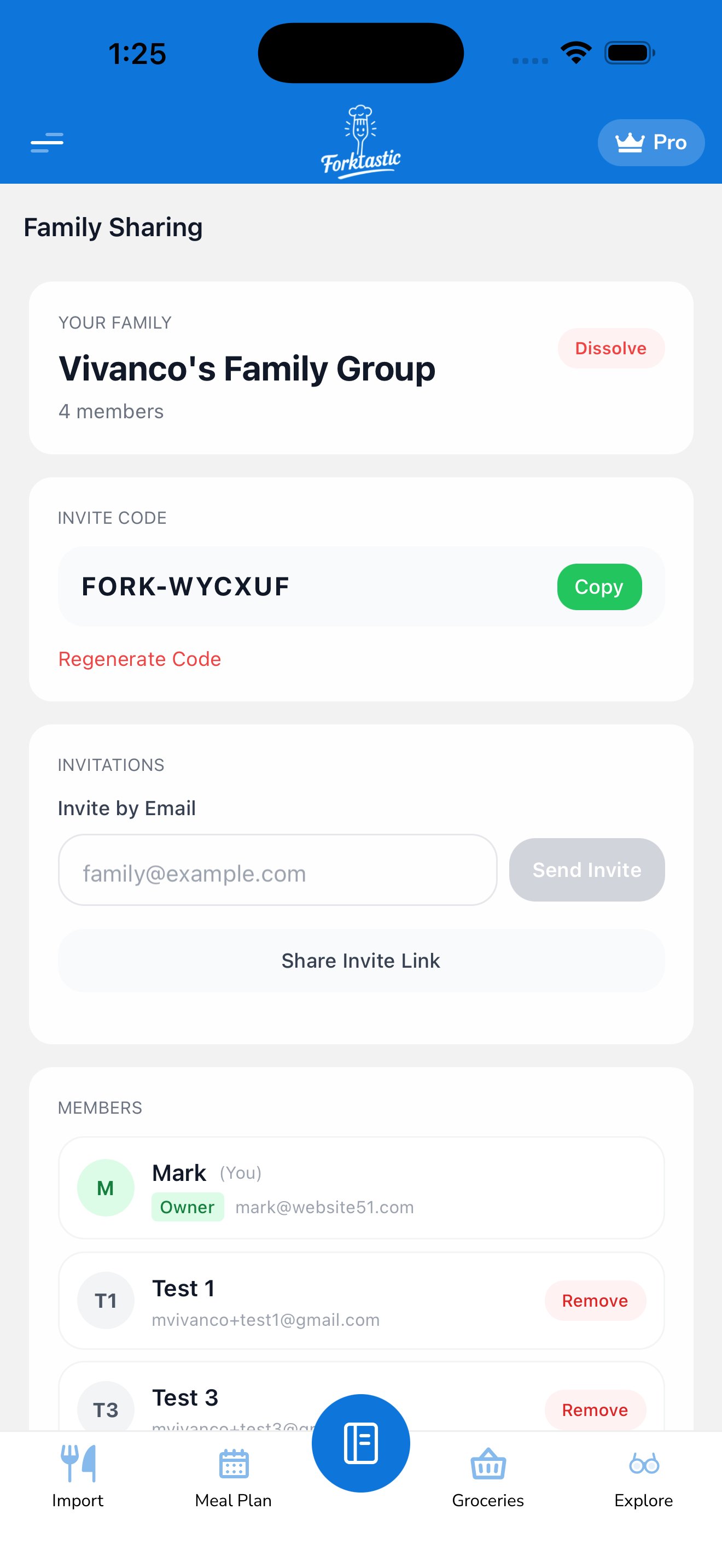
- Open Forktastic. There’s no Family tab in the bottom bar — open it from Options → Family (or look for a Family entry in your account screen).
- If you’re not currently in a family, you’ll see a Create a family button.
- Tap Create a family.
- Enter a family name — anything you like (e.g., “The Vivanco Household”, “Sunday Dinner Crew”). This is visible to everyone you invite.
- Tap Create.
- Your new family group is created with you as the only member (the owner).
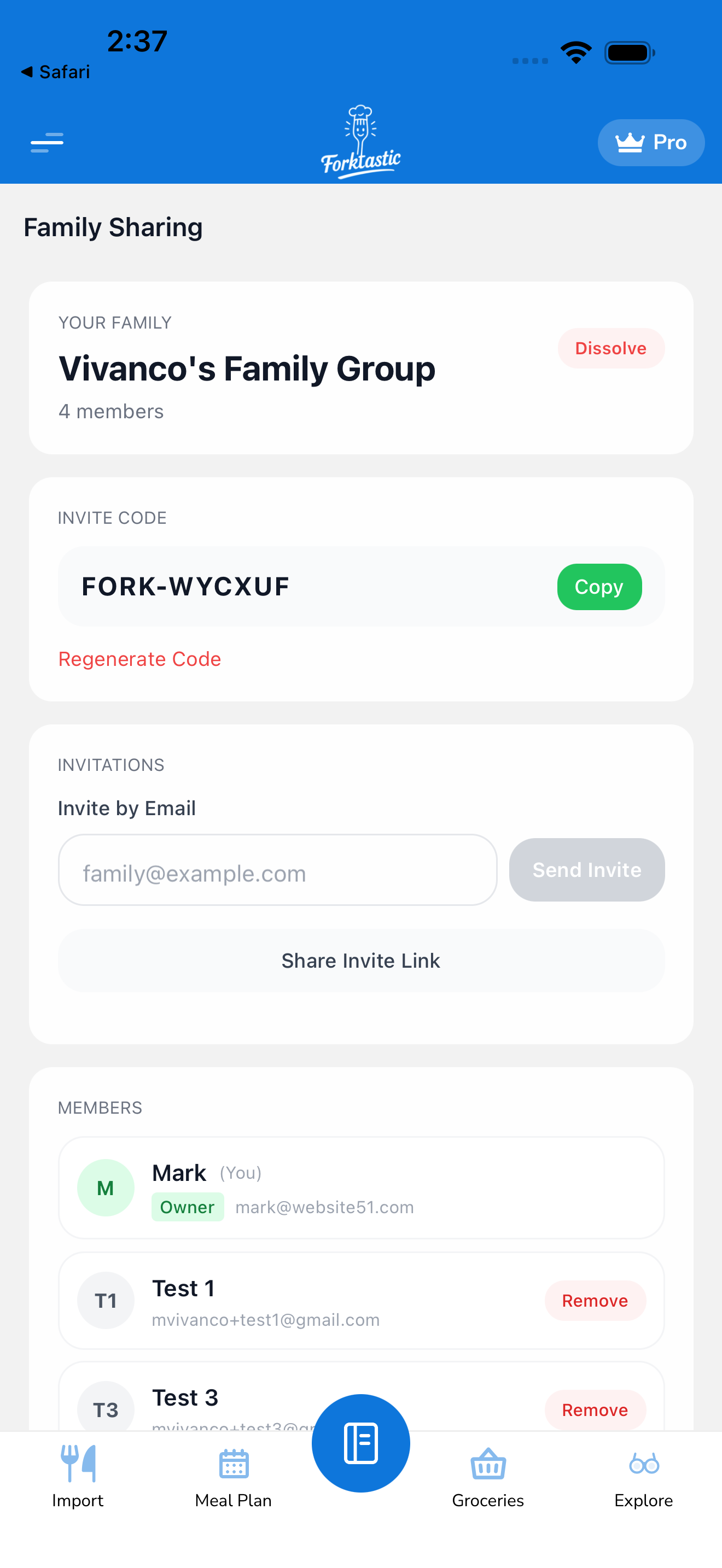
What you can do as the owner
Once your family group exists, the Family screen shows:
- The family name (tappable to rename)
- The member list — everyone currently in the family, with their avatar and join date
- The activity feed — what’s been cooked, added, or shared recently
- An Invite member button — to add more people
- A leave / delete option in settings
To bring people in, head to Invite members.
What family members can see
Once someone accepts your invite, they can:
- Browse every cookbook you’ve marked as shared with family
- Open and view recipes inside those shared cookbooks
- Add shared recipes to their own meal plan or grocery list
- See your recent activity (recipes cooked, recipes added) in the feed
They cannot:
- See cookbooks you didn’t mark as shared
- See your account settings or personal information beyond your display name and avatar
- Edit or delete your recipes (read-only access; you stay in control)
You can revoke sharing on a per-cookbook basis at any time. See Share cookbooks and recipes with family.
Renaming the family
- Tap the family name at the top of the Family screen.
- Edit the name.
- Tap Save.
The new name is visible to all members immediately.
Deleting the family group
If you want to dissolve the family entirely:
- Open the Family screen.
- Scroll to the bottom and tap Delete family group.
- Confirm. All members are removed, the family disappears for everyone, and no recipes are deleted — each member keeps their own personal cookbooks intact.
Deleting is permanent and can’t be undone. If you just want to leave without dissolving the group, see Remove a member and use the “leave” option instead.
Related
- Invite members — bring in the people you cook with
- Join a family via invite code — if you’re on the other side of an invite
- Share cookbooks and recipes with family — control what’s visible
- The family activity feed — see who cooked what