
Manage your subscription
Once you’re a Pro subscriber, the Options → Subscription details screen is your management hub. From there you can see your current plan, switch plans, update payment method (web), and review billing history.
Open subscription details
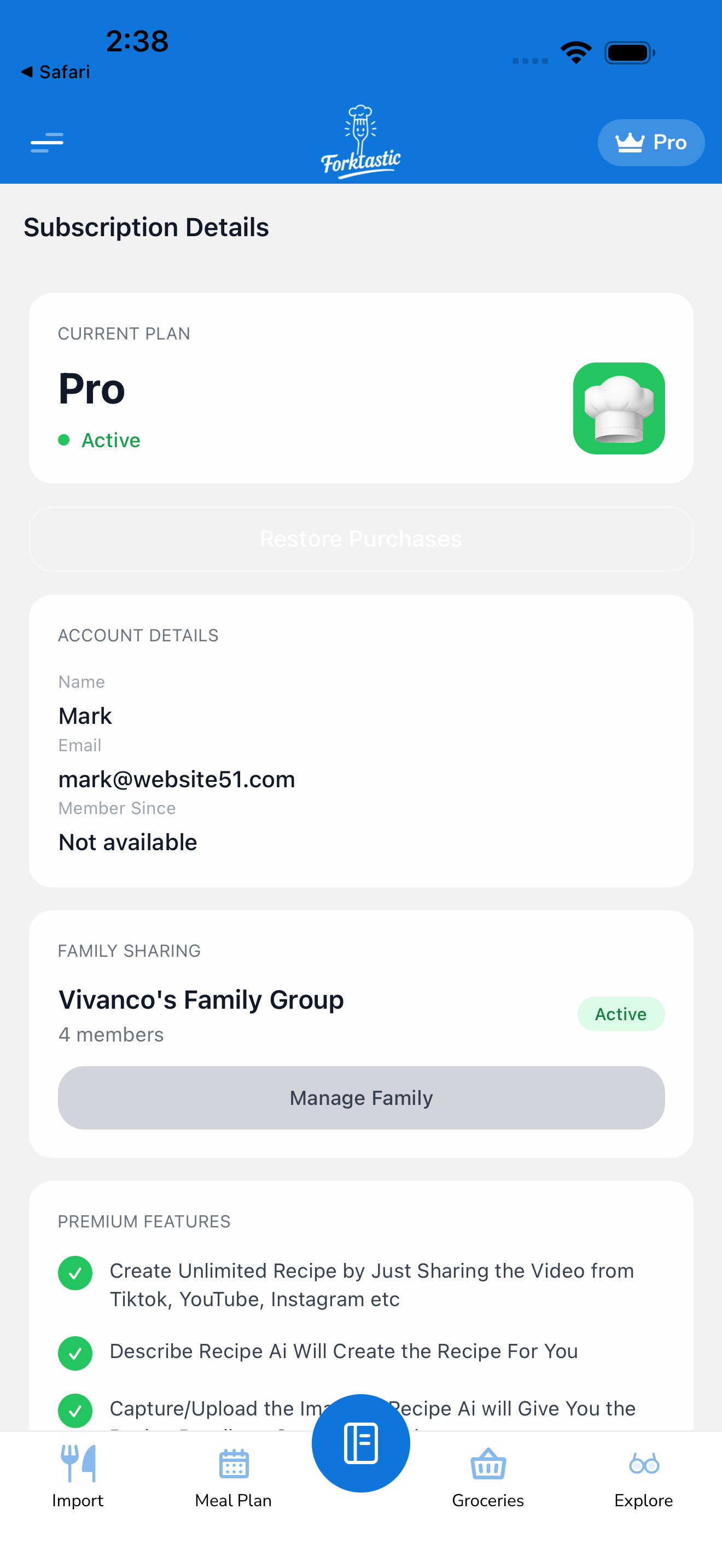
- Open the Options tab.
- Tap Subscription details.
You’ll see:
- Plan name — Monthly Pro / Annual Pro / Free
- Status — Active / In trial / Cancelled (renews until …) / Expired
- Next renewal — the date your next billing cycle starts
- Price — what you’ll be charged at renewal, in your local currency
- Source — Apple, Google, or Stripe (depending on where you subscribed)
- Manage button — opens the appropriate platform’s subscription management
Switch between monthly and annual
If you signed up monthly and want to switch to annual (or vice versa), the path depends on platform:
iOS
- Tap Manage in Subscription details.
- iOS opens its subscription management page.
- Tap Forktastic Pro.
- Choose Annual (or Monthly) under “Options”.
- Confirm with Face ID / passcode.
The switch is prorated — Apple credits the unused portion of your current plan and applies it to the new plan.
Android
- Tap Manage.
- Google Play opens.
- Tap Forktastic Pro → Change plan.
- Choose Annual or Monthly.
- Confirm.
Google also prorates the switch.
Web (Stripe)
- In the Forktastic web app, tap Manage subscription.
- The Stripe customer portal opens in a new tab.
- Tap Update plan.
- Choose the new plan.
- Confirm.
Web subscriptions can also be switched directly at app.forktastic.com/account/subscription.
Update payment method
Forktastic doesn’t store your payment details directly. They’re held by Apple, Google, or Stripe depending on where you subscribed.
iOS
iOS subscriptions use your Apple ID’s payment method. To change:
- iOS Settings → Your name → Payment & Shipping.
Android
Google Play uses your Google account’s payment method. To change:
- Play Store → Payments & subscriptions → Payment methods.
Web
To change a Stripe-billed subscription’s payment method:
- Subscription details → Manage.
- Stripe customer portal → Payment methods → Add new or Edit existing.
Billing history
To see past charges:
iOS / Android
Not visible in Forktastic — open the App Store / Play Store and view your subscription history there.
Web
- Subscription details → Manage.
- The Stripe customer portal shows full history with downloadable invoices.
Family Sharing implications
Pro Family — sometimes called “household sharing” — isn’t a Forktastic feature directly. Forktastic Pro is per-account, regardless of platform.
What Forktastic does offer:
- The family creator’s Pro subscription unlocks Family Sharing for the group.
- Family members see shared cookbooks regardless of their own Pro status.
- Family members still need their own Pro for their features (their imports beyond 5, their Photo Match).
See Create a family group and Free vs Pro.
What happens if you stop paying?
If a renewal fails (expired card, insufficient funds):
- The app-store / Stripe will retry the charge several times over several days.
- During retries, Pro stays active.
- If retries all fail, your subscription lapses — Pro features turn off, you’re on the free tier.
- You can re-subscribe any time from the paywall.
To avoid this: keep your payment method up to date in your app-store / Stripe account.
Related
- Upgrade to Pro
- Restore purchases — re-sync subscription state
- Cancel