
Join a family via invite code
If someone invited you to their Forktastic family group, you join by entering the invite code they shared, or by tapping the invite link in the email they sent you. Either way takes about 30 seconds.
You can be a member of multiple family groups at once — for example, your immediate family and your in-laws — and switch between them in the app.
You’ll need
- A Forktastic account. Free is fine; you don’t need Pro to join a family. See Create your account if you don’t have one yet.
- The invite code (6 characters, like
7F4P9X) or the email invite link from the family owner.
Joining by code
- Open Forktastic. Sign in if you’re not already.
- Open Options → Family.
- Tap Join a family.
- Enter the invite code you were given. It’s not case-sensitive.
- Tap Join.
- Forktastic shows you a confirmation: the family name and the owner’s display name. Verify it’s the family you expected.
- Tap Confirm join.
You’re now a member. The Family screen updates to show the family name, other members, and any cookbooks already shared with you.
Joining by email link
If the family owner used the email invite method:
- Open the email from
noreply@forktastic.com. Subject: “You’ve been invited to join [Family name] on Forktastic.” - Tap the Join now link in the email.
- The link opens Forktastic. If you’re not signed in, sign in or sign up first.
- After signing in, you’re shown the confirmation screen with the family name.
- Tap Confirm join.
If you don’t have Forktastic installed when you tap the link, you’ll be sent to the App Store / Play Store / forktastic.com to install or open the web app, then the link picks back up after install.
After joining
You can immediately:
- Browse the family’s shared cookbooks from your Cookbook tab — they appear in a dedicated Family section
- View any recipe shared by family members
- Add a shared recipe to your own meal plan or grocery list
- See the family activity feed showing who’s cooked or added recipes recently
Your own private cookbooks remain private unless you decide to share them. See Share cookbooks and recipes with family.
Switching between families
If you’re in more than one family, the Family screen has a switcher at the top:
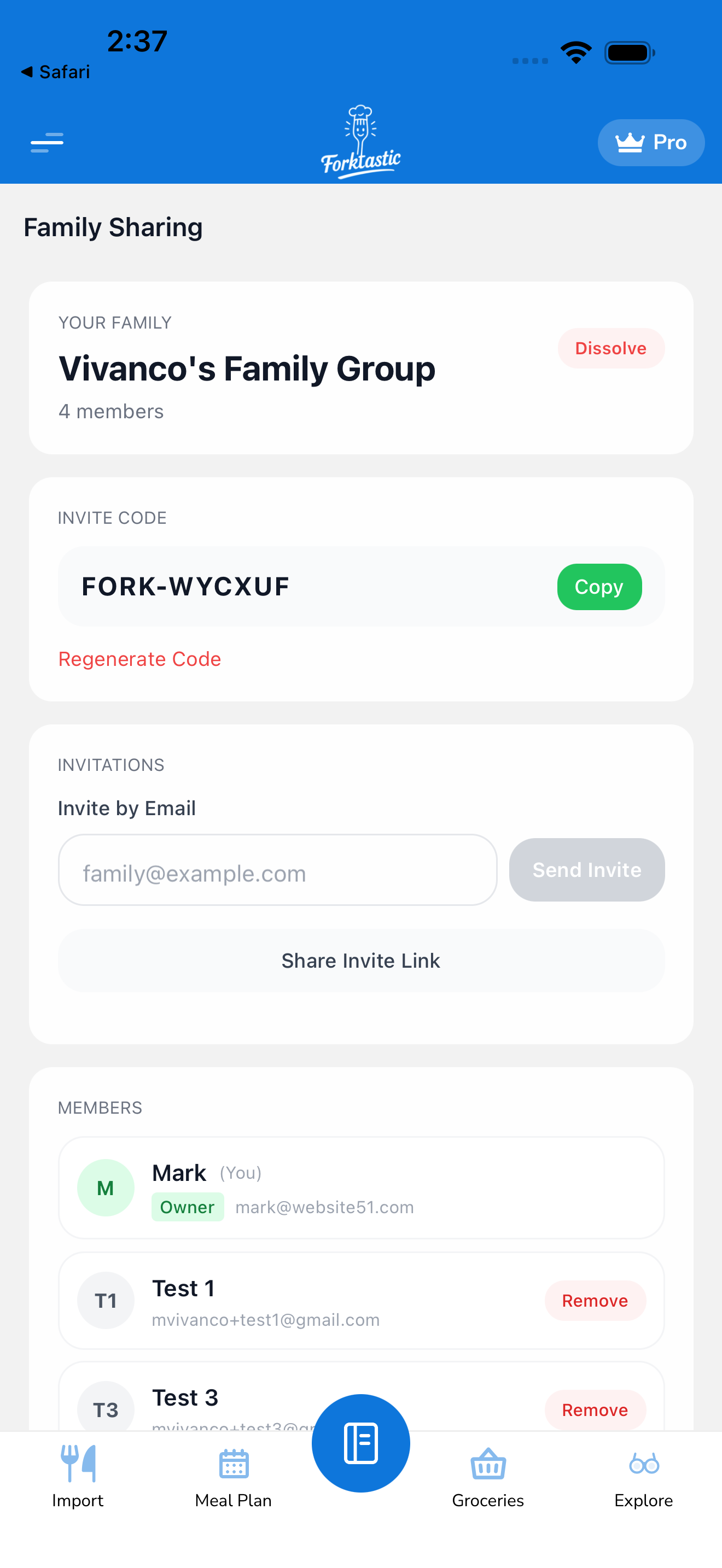
Tap the family name to switch which family’s feed and members you’re viewing. You can also share recipes to whichever family is currently active.
Leaving a family
If you want out:
- Open the Family screen.
- Tap the Family settings icon (gear).
- Tap Leave this family.
- Confirm.
You’re removed immediately. The shared cookbooks disappear from your view; your own personal cookbooks are unaffected. If you want back in later, the owner can re-invite you.
What if the code doesn’t work?
- Code expired? Invite codes typically expire after 7 days. Ask the owner for a fresh one.
- Typo? Codes are 6 characters (letters + digits). Double-check for
0vsO,1vsI. - Wrong account? Make sure you’re signed into the account the invite was meant for. The owner sends to your email, but if you’re signed in as a different user, the code might be rejected. Sign out and back in with the right email.
Related
- Create a family group — start your own
- Share cookbooks and recipes with family — once you’ve joined, you can share too
- The family activity feed — see who’s cooking what