
Invite members to your family
Once you’ve created a family group, you can invite as many people as you want to join it. Forktastic supports two invite methods:
- By invite code — a short alphanumeric code your invitee enters in their app to join.
- By email — Forktastic sends an email invite directly; the recipient taps the link to join.
Both methods result in the same thing: the invitee becomes a member of your family group with read access to your shared cookbooks.
Inviting by code (fastest)
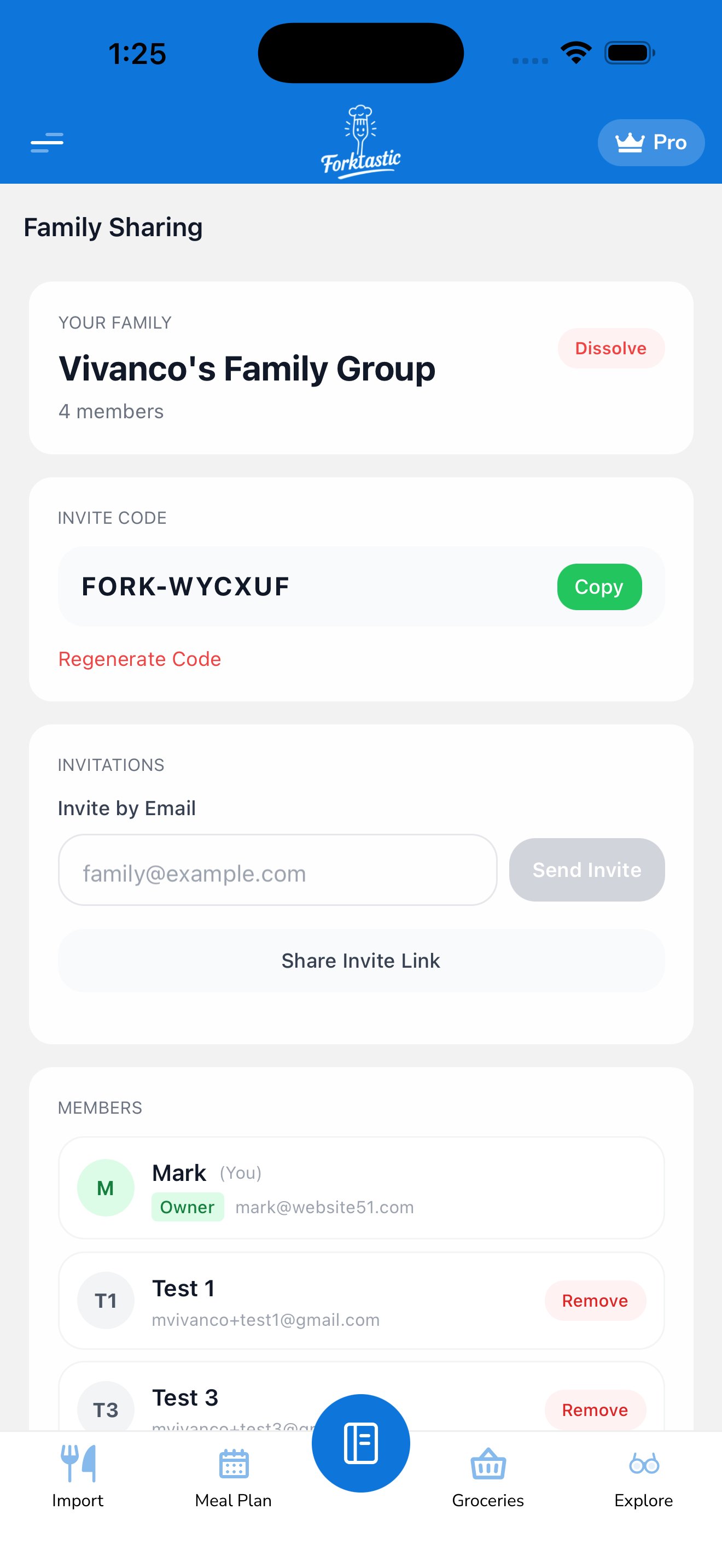
- Open the Family screen.
- Tap Invite member.
- Choose Invite by code.
- Forktastic generates a short code (something like
7F4P9X). It’s displayed large and copyable on screen, with an expiration date — typically 7 days. - Tap Copy or Share to send the code to your invitee however you like (text, WhatsApp, in person — anywhere).
- Your invitee opens Forktastic, signs in or signs up if needed, then goes to Options → Family → Join a family and enters the code.
That’s it. They’re in.
See Join a family for the invitee’s side.
Inviting by email
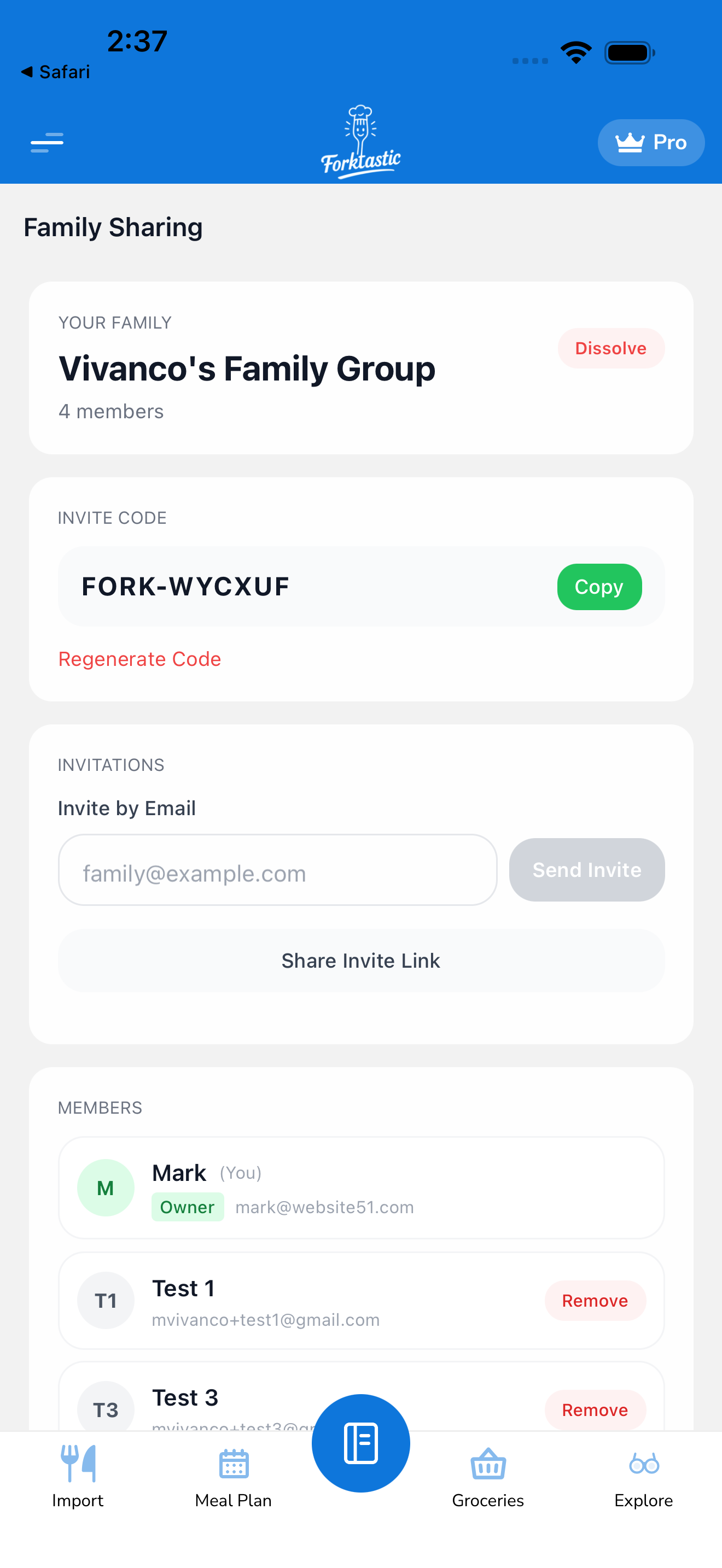
- On the Family screen, tap Invite member.
- Choose Invite by email.
- Enter the email address of the person you want to invite.
- Optionally add a short personal note (shows up in the email).
- Tap Send invite.
Forktastic sends an email from noreply@forktastic.com with a join link. The invitee taps the link, which:
- Opens the Forktastic app if they have it installed
- Or directs them to download the app first, then opens it
After signing in (or signing up), they’re automatically added to your family.
Email invites also have an expiration (typically 14 days). If the link expires, just send a new one.
Managing pending invites
Open the Family screen to see all currently pending invites — invitees who’ve been sent a code or email but haven’t joined yet. From here you can:
- Resend an email invite
- Revoke an invite (cancels the code/link)
- Copy the code again for a code-based invite
How many members can I invite?
Family groups have a maximum member count tied to your subscription plan. The exact limit is shown at the top of the invite screen (“X of Y members”). If you’re at the limit, you’ll need to remove someone before inviting more — see Remove a member.
What invitees need
Your invitee must:
- Have a Forktastic account (or be willing to create one). The app prompts them to sign up if they don’t.
- Be on a supported device — iOS, Android, or the web.
They do not need their own Pro subscription to join your family. They get access to whatever you’ve shared, regardless of their plan.
Privacy
Your invitee will see:
- Your display name and avatar from your Forktastic profile
- The cookbooks you’ve shared with the family (and recipes inside them)
- Your activity in the family feed (recipes you cooked, recipes you added — but only your activity within the family, not your private app usage)
They will not see:
- Your email address (unless you shared it directly)
- Cookbooks not marked as shared
- Your meal plan, grocery list, or account settings
Related
- Create a family group — if you haven’t yet
- Join a family via invite code — for the invitee
- Share cookbooks and recipes with family — control what gets shared
- Remove a member — if someone needs to leave