
Remove a family member
Sometimes a family member needs to leave — a roommate moves out, a teenager opens their own account, an in-law… well. Forktastic gives the family owner the ability to remove any member, and any member the ability to leave on their own.
This page covers both, plus what happens to shared content after.
If you’re the owner — remove someone else
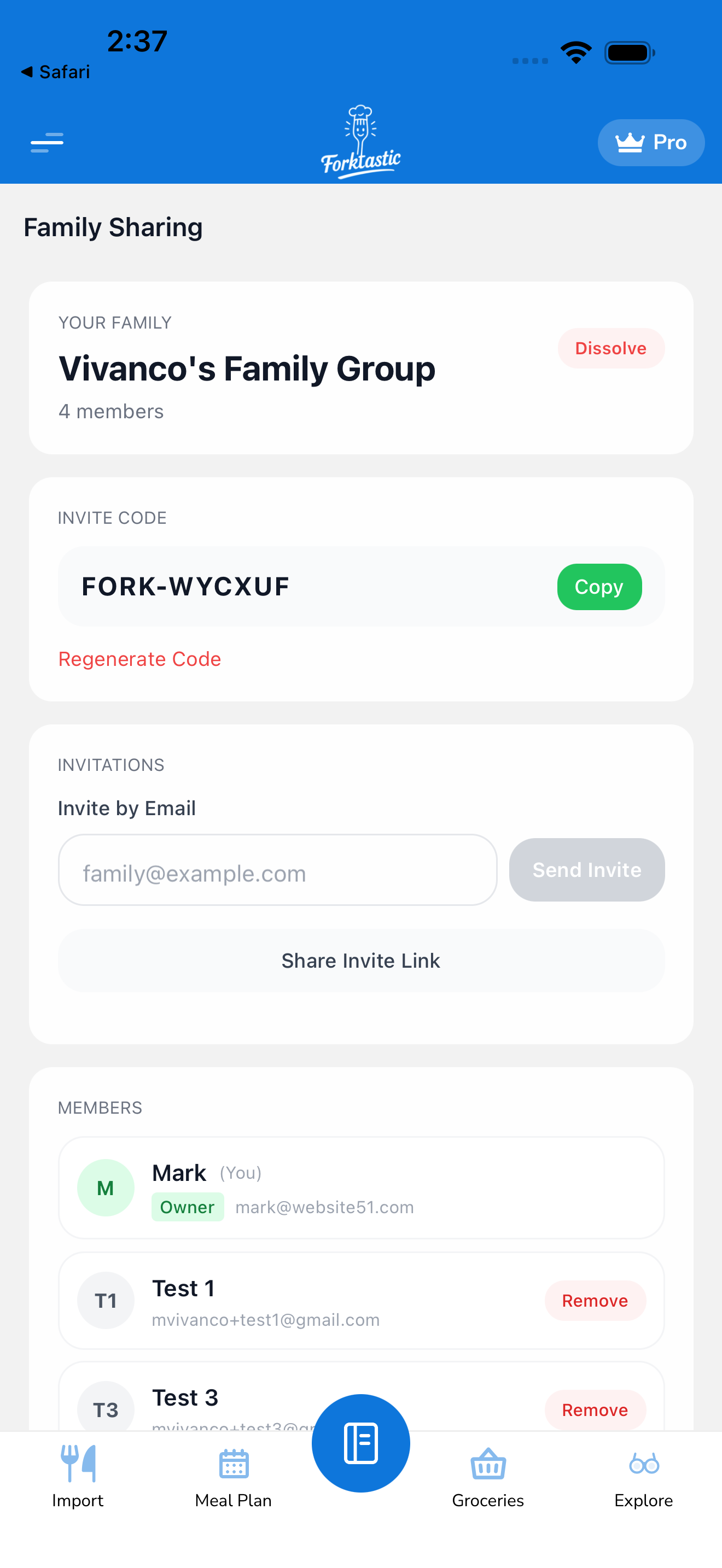
- Open the Family screen.
- Tap the Members list (or scroll down to it if it’s on the main screen).
- Tap the avatar or name of the member you want to remove.
- Tap Remove from family.
- Confirm.
The member is removed immediately. They lose access to all shared cookbooks and recipes the moment they’re removed.
If you’re a member — leave on your own
You don’t need permission from the owner.
- Open the Family screen.
- Tap the Family settings icon (gear).
- Tap Leave this family.
- Confirm.
Same effect — you’re out, you lose access to shared content. Your own personal cookbooks, recipes, meal plan, and grocery list are unaffected.
What happens to shared content
After a member is removed or leaves:
Their access ends:
- Shared cookbooks disappear from their Cookbook tab
- Shared recipes are no longer viewable
- The family activity feed no longer includes them
Recipes they imported into shared cookbooks stay:
- If they added recipes to a shared cookbook (e.g., “Weeknight Dinners”), those recipes remain in that cookbook for the rest of the family
- The original importer is still credited on each recipe (so you can see who added what)
- The leaving member keeps their own personal copy of those recipes — Forktastic doesn’t delete from their account
Activity feed history:
- Past events from the leaving member stay in the feed (they’re historical record)
- New events from them obviously stop appearing
Can the owner be removed?
No — the owner can’t be removed by other members. If the owner wants to step away, they have two options:
- Transfer ownership to another member, then leave. (Open the Family settings, tap Transfer ownership, pick the new owner. The new owner needs an active Pro subscription.)
- Delete the family group entirely, which removes everyone and dissolves the family. See Create a family group for the delete steps.
Rejoining
A removed or self-departed member can rejoin if the owner sends a new invite. See Invite members. Their previously-shared content (recipes they added to family cookbooks) will be visible to them again immediately on rejoining.
Removing yourself from all families
If you want to leave every family group you’re in:
- Leave each one individually using the steps above.
- Or, if you’re closing your Forktastic account entirely, see Delete your account — account deletion automatically removes you from all family groups.
Privacy after removal
A removed or departed member loses access to shared content, but Forktastic doesn’t delete their copies or notify anyone besides updating the member list and feed. They can’t see what you do in the family after they leave; you can’t see what they do in their own private account.
Related
- Create a family group — the owner-only delete option
- Share cookbooks and recipes with family — how content sharing works in the first place
- Invite members — to add someone back