
Shop with Instacart
If you don’t want to go to the store yourself, you can send your Forktastic grocery list to Instacart and have a shopper deliver or pick up your order from a store near you. The integration takes your list, opens Instacart with the items pre-loaded, and lets you finish checkout there.
Instacart is supported in the US and Canada. Other regions: the Send list as text option lets you paste into any other delivery service’s app.
How it works
- You build your grocery list in Forktastic (manually, from recipes, or from your meal plan).
- You tap Send to Instacart.
- Forktastic constructs an Instacart deep link with your items as a pre-filled cart.
- The Instacart app (or web) opens with your items in the cart.
- You confirm store, quantities, substitutions; complete checkout in Instacart.
- Your order is shopped and delivered (or available for pickup).
Forktastic doesn’t handle the payment or delivery — Instacart does that with their own service. Forktastic’s role is just transferring your list.
Send the list to Instacart
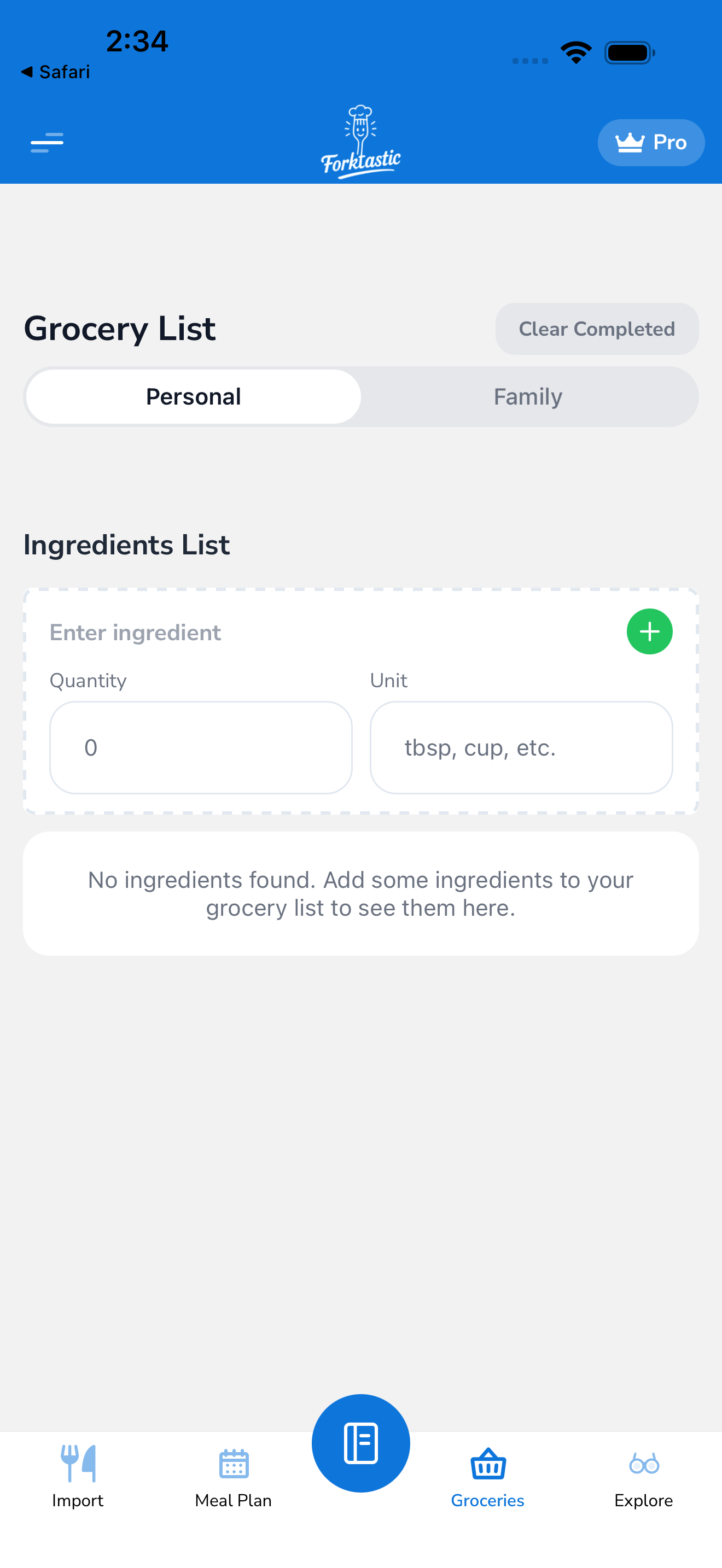
- Open the Grocery tab.
- Make sure your list has everything you want to order. (Items you’ve checked off are excluded from the Instacart send.)
- Tap More → Send to Instacart.
- If you don’t have the Instacart app installed:
- On mobile: you’re sent to the App Store / Play Store to install Instacart, then can come back.
- On web: a new tab opens with Instacart’s website pre-loaded with your cart.
- In Instacart: confirm store, quantities, item substitutions; checkout normally.
Item matching
Forktastic items are matched to Instacart’s product catalog by name. The match is usually accurate for common items:
- “1 dozen eggs” → “Large Eggs, 1 dozen”
- “2 lb chicken breast” → “Chicken Breast, 2 lb”
- “olive oil” → top result for “olive oil”
For ambiguous items, Instacart’s UI lets you swap to a different product in the cart before checkout. Forktastic doesn’t override Instacart’s defaults; you finalize in their app.
What doesn’t transfer well
- Brand-specific items — “Whole Foods 365 brand olive oil” won’t match exactly; you’ll get the top olive oil result.
- Custom items — “8 squares of dark chocolate” with no standard product mapping will be skipped or matched to “dark chocolate”.
- Very long item descriptions — Instacart truncates search queries past ~100 characters.
Items that can’t be matched are listed at the top of Instacart’s cart for you to manually pick.
Store selection
Instacart asks which store to shop from before completing the order. Forktastic doesn’t have a preferred store setting — you pick in Instacart each time.
If you have a regular store, save it as a favorite in Instacart; it’ll be the default next time.
Pricing
The Instacart integration in Forktastic is free. Instacart charges separately for:
- Service fee (typically 5–10% of order)
- Delivery fee (typically $3.99–$7.99; free with Instacart+ membership)
- Tip (suggested 10–20%)
These appear in Instacart’s checkout, not Forktastic. Pricing is set by Instacart and not affected by using Forktastic as the source.
Privacy
- Forktastic sends only your grocery list items (text descriptions) to Instacart. No account information, no recipe titles, no personal data.
- Instacart’s privacy policy governs your Instacart account; Forktastic doesn’t have access to it.
Available in your region?
The Instacart button is shown automatically if Instacart serves your region. If you don’t see it:
- Send list as text — paste into your preferred local delivery service
- Save list as PDF — print and shop yourself
Forktastic is exploring more delivery partners; the available list is in Options → Grocery → Delivery partners.
Related
- Check items off as you shop — the alternative if you shop yourself
- Add items manually
- Auto-populate from your meal plan