
Capture food photos for Photo Match
Photo Match’s first step is capture — get photos of what you have. The AI works best when it can clearly see each item, so a few simple framing rules help.
Photo Match is a Pro feature.
How to start
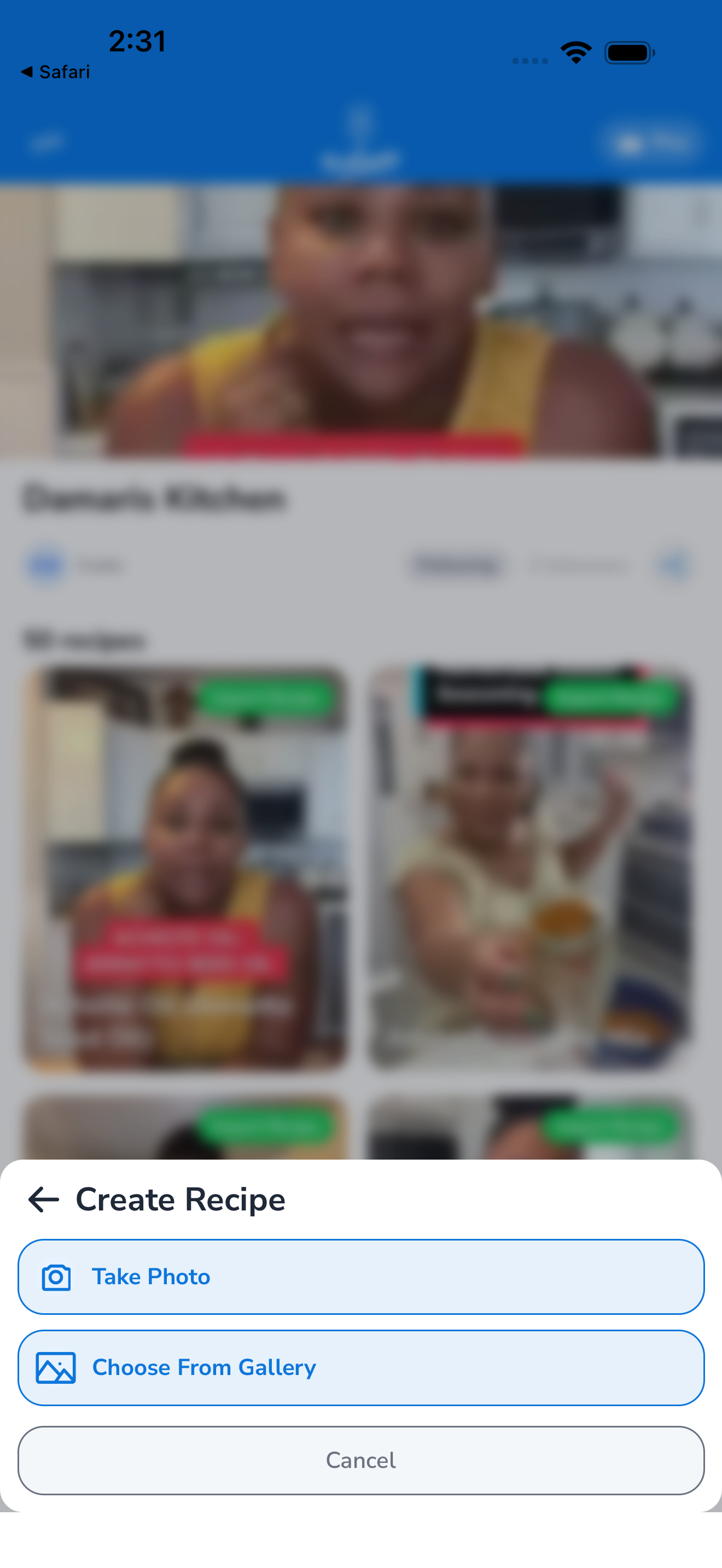
- Open Photo Match — find it in the Options menu, the Import tab, or by tapping a “Photo Match” entry point inside a meal plan.
- Tap Take photo — uses your camera.
- Tap Choose from library — picks an existing image.
The first photo opens the multi-photo capture workflow. After each shot, the counter (“1 of 10”) increments and Forktastic offers Take another or Done.
How many photos
You can submit 1 to 10 photos in a single Photo Match session. Best practice:
- Fridge: 3–4 photos (one of each shelf, one of the door)
- Pantry: 2–3 photos (different sections)
- Counter: 1 photo if there’s a discrete pile
- Total inventory: mix of the above, up to 10
Quality > quantity. Four clear photos beat ten blurry ones.
Framing tips
The AI is robust but predictable: it works best when items are visible and identifiable.
Do:
- Open the fridge / cabinet fully so items are in plain view
- Pull items toward the front of the shelf so they’re not hidden behind other items
- Photograph in good light — kitchen overhead light, or natural light through a window
- Hold the phone steady — blurry photos limit identification
Don’t:
- Photograph closed packages from the back (the label needs to be visible)
- Stack so many photos that items overlap heavily
- Photograph from extreme angles (top-down works better than acute side angles)
Edit / remove a photo before submitting
After each capture, the bottom of the screen shows a strip of thumbnails. Tap any thumbnail to:
- Preview — view full-size
- Retake — replace that photo with a new shot
- Remove — delete from the batch
You don’t have to start over to fix one bad photo.
Submit for analysis
When you’re done capturing:
- Tap Done (or Analyze, depending on app version).
- Forktastic uploads the photos and runs vision + ingredient extraction.
- Analysis takes 20–60 seconds depending on photo count and detail.
- The review screen opens — see Review the extracted ingredients.
Privacy and photo handling
- Photos are uploaded to Forktastic’s secure servers for processing.
- After analysis, photos are retained for 24 hours then deleted. They’re not used for training or shared.
- Extracted ingredient data stays in your account.
If you don’t want photos uploaded at all, Photo Match isn’t usable — the AI runs server-side.
Related
- Review the extracted ingredients — next step
- Photo Match overview — when to use Photo Match vs other features
- Import from a photo — different feature for recipes in photos