
Rate and review a recipe
After you cook a recipe, you can give it a star rating (1 to 5) and an optional written review. Ratings serve two purposes:
- A personal reminder of what worked and what didn’t — when you scroll your cookbook, the 5-star recipes stand out.
- A family signal — your ratings are visible to people in your family group on shared recipes.
For public recipes from the Explore tab, you’ll also see the community average rating.
Rate a recipe
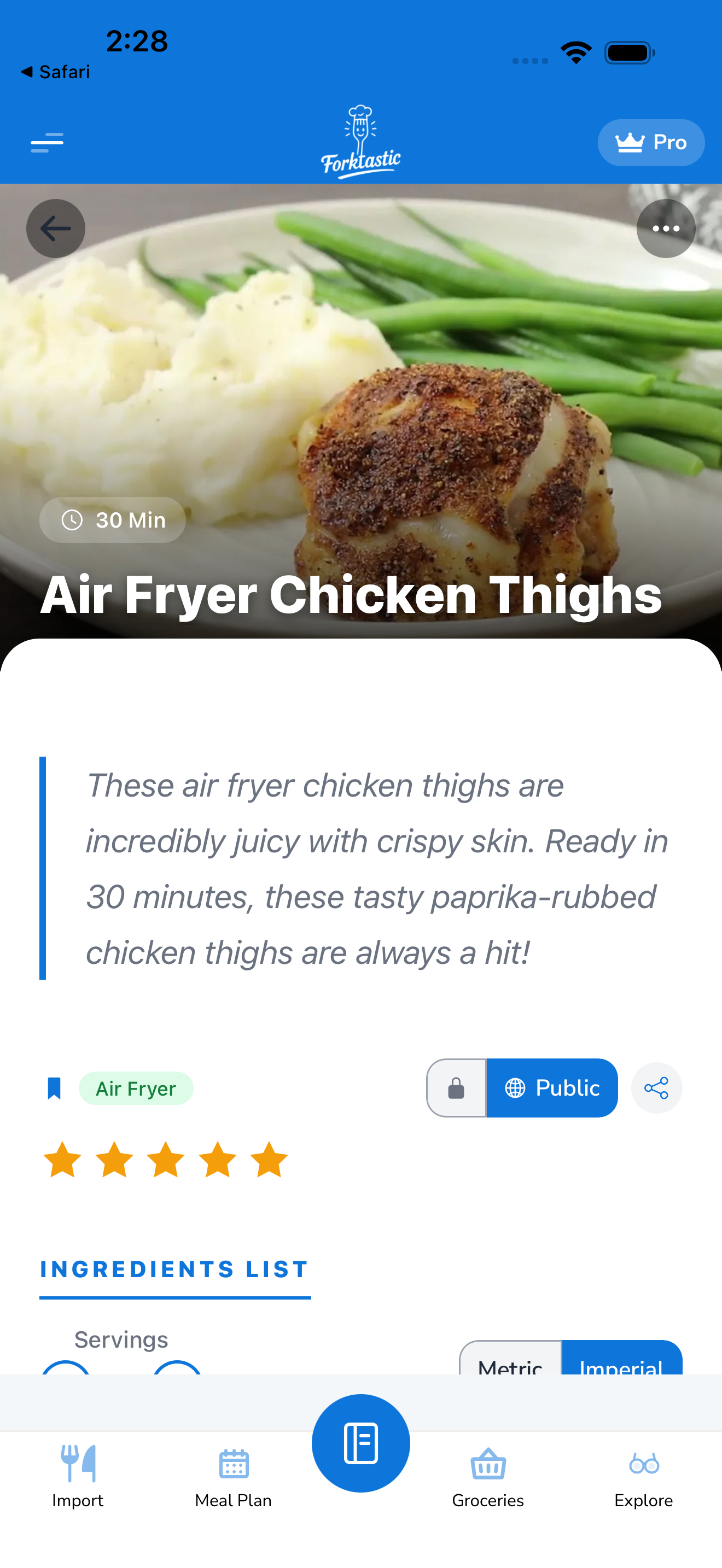
- Open the recipe.
- Scroll to the Your rating section near the bottom.
- Tap the star count that matches your experience: 1 (don’t make again), 2 (meh), 3 (fine), 4 (good), 5 (favorite).
- Optionally tap Add a note to write a short review — what worked, what you’d change next time.
Your rating saves instantly. You can change it later by tapping a different star.
Where ratings show up
- In your cookbook list — recipes with 4+ stars show a yellow star badge next to the title.
- In the recipe screen — your rating is at the top of the Your rating section.
- In family-shared cookbooks — family members can see your rating with your display name attached. The rating section shows the family aggregate as well (e.g., “Average from your family: 4.3 / 5 across 3 ratings”).
- In Explore — public recipes display a community average rating.
Filtering by rating
In your Cookbook tab:
- Tap the filter icon at the top.
- Choose Minimum rating: 4+.
The list filters to only show 4- and 5-star recipes. Useful when meal planning a week and you want to fall back on proven favorites.
Ratings and the meal plan
When you cook a recipe via Cook Mode and finish it, Forktastic gently prompts you to rate it (you can dismiss the prompt). This is the easiest moment to capture an honest reaction — right after cooking, before time blurs the memory.
You can disable the post-cook rating prompt in Options → Notification settings.
Reviews are private by default
Your star rating is visible to family members on shared recipes. Your written review is private by default — only you see it. To share a review with family, tap Share with family at the bottom of the review when you write it.
For public Explore recipes, you can choose to publish a review publicly when you save. Public reviews show your display name and any photo you’ve added.
Related
- View a recipe
- Cook Mode — auto-prompts rating after cooking
- Share cookbooks and recipes with family