
Auto-populate grocery from your meal plan
This is Forktastic’s marquee shopping workflow: plan your week first, then have Forktastic turn the meal plan into a consolidated grocery list. Duplicate ingredients across recipes are merged — “2 cups flour” from one recipe and “1 cup flour” from another become “3 cups flour” in your list.
Generate the grocery list
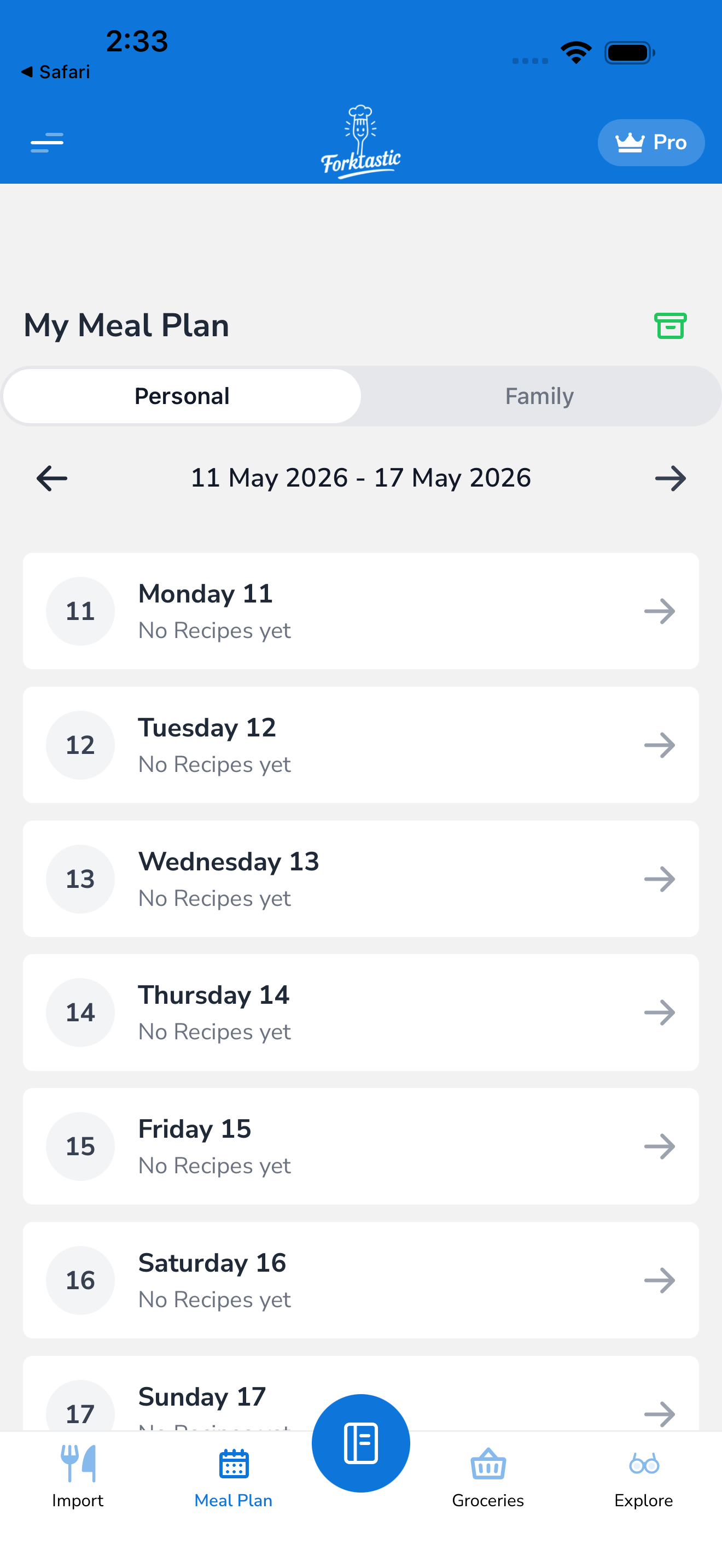
- Open the Meal Plan tab.
- Make sure you’ve scheduled recipes for the week you want to shop for. See Assign recipes to slots.
- Tap More → Make grocery list.
- The picker opens:
- Date range — defaults to this week (Mon–Sun); change to next week, custom range, or “next 7 days from today”
- Meals to include — by default all four (breakfast, lunch, dinner, snack); uncheck any you handle differently
- Exclude already-cooked meals — on by default; uncheck if you want ingredients for past meals too
- Tap Preview.
Forktastic shows the consolidated ingredient list before adding to grocery.
- Review the list. Uncheck anything you don’t need (pantry items, leftovers from last shop).
- Tap Add to grocery.
All items land in the Grocery tab.
How consolidation works
If multiple recipes use the same ingredient, Forktastic merges them when:
- Same ingredient name (or close match — “olive oil” and “extra virgin olive oil” merge with a small note)
- Compatible units (cups + cups; tablespoons + tablespoons; can convert g + kg automatically). Incompatible units (cups + g for flour) are kept separate with both shown.
So:
Pasta recipe: 2 cups flourCookie recipe: 1 cup flourBread recipe: 500 g flourIn the consolidated list, becomes:
Flour: 3 cups + 500 gThe grocery list shows both, since Forktastic doesn’t know your preferred conversion preference — but you can edit it to a single value.
For ingredients you’d rather have as a single value:
- Tap the consolidated item.
- Tap Convert all to grams (or Convert all to cups).
- Forktastic uses the standard density for that ingredient and gives you one number.
Recipe-level grouping (optional)
By default, the grocery list groups items by category (Produce, Dairy, etc.). If you’d rather see “ingredients for the lasagna, then ingredients for the chicken stir-fry,” change Grocery → Sort → By recipe.
Note that the By recipe view doesn’t consolidate duplicates — you see flour listed once under each recipe. Switch to By category to get the consolidated view.
Pantry exclusions
If you have a defined pantry list (salt, pepper, oil, basics that you always have), Forktastic auto-unchecks them in the meal-plan-to-grocery preview, so you don’t add salt to grocery every single week.
Configure in Options → Grocery → Pantry items. Add common staples once; they’re excluded going forward.
Re-running the generator
You can regenerate at any time — say you change your mind mid-week and add a new recipe to Friday’s dinner:
- Run Meal Plan → More → Make grocery list again.
- Forktastic detects you already populated this week’s list and offers:
- Add new items only — only adds ingredients not already in your grocery list
- Replace this week’s items — removes the prior auto-populated batch and adds fresh
- Add everything — adds duplicates (probably not what you want)
Most users pick Add new items only.
Generated lists vs manual edits
Items you add manually to grocery stay in the list even after a regeneration. The “Replace this week’s items” option only affects items that came from the meal-plan auto-populate, not anything you typed in yourself.