
Change your password
If you signed up with email and password, you can change your password any time. If you signed up with Apple or Google, you don’t have a password by default — but you can add one to also enable email/password sign-in alongside social sign-in.
Change an existing password
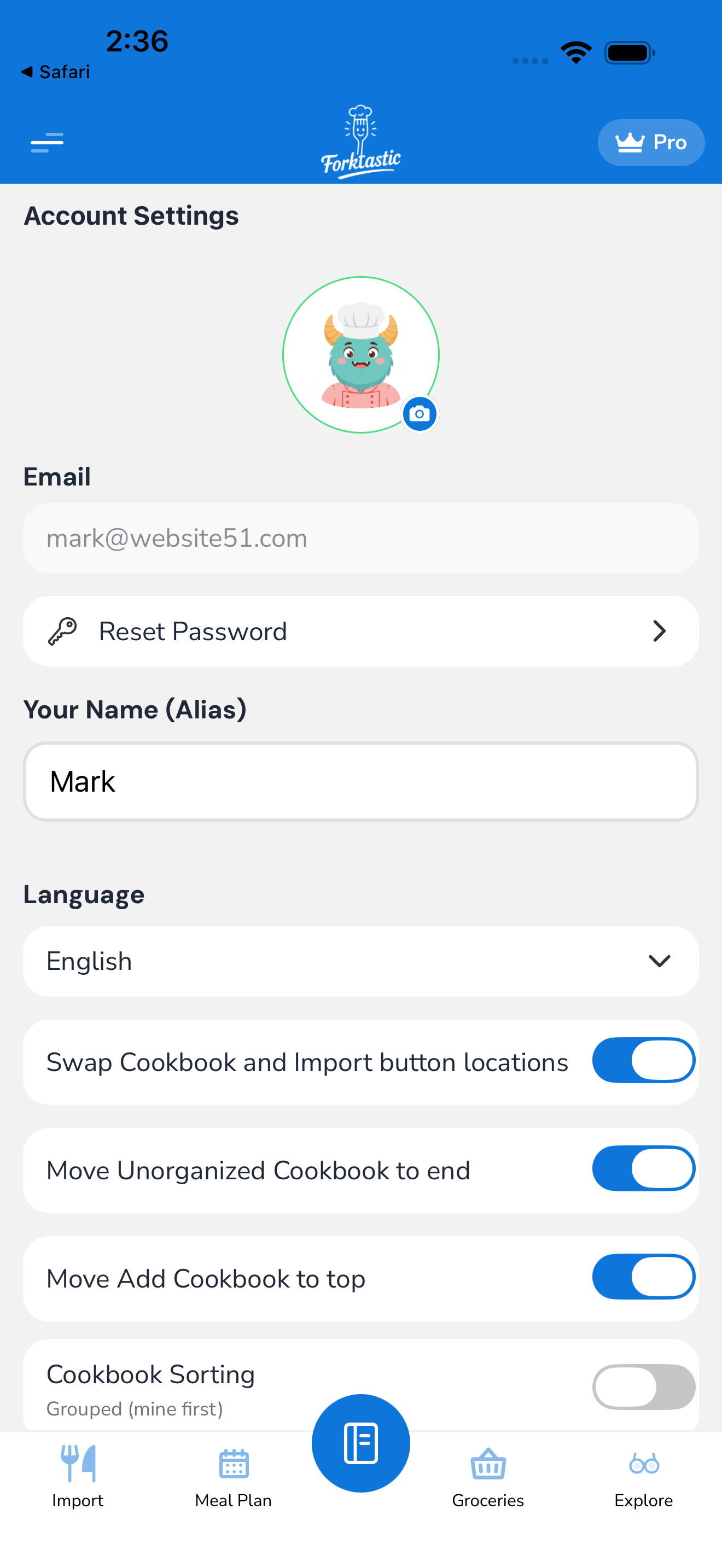
- Open Options → Account settings → Security.
- Tap Change password.
- Enter your current password.
- Enter the new password (at least 8 characters, mix of letters and numbers recommended).
- Confirm the new password.
- Tap Save.
Forktastic signs you out of all other devices for security. You’ll need to sign in again with the new password on any other device you use.
Add a password to a social account
If you signed up with Apple or Google and want to also be able to sign in with email/password (so you can sign in on web without redirecting to your social provider):
- Open Options → Account settings → Security → Sign-in methods.
- Tap Add password.
- Enter your account email (pre-filled if you have one) and a new password.
- Confirm.
Now you can sign in with either method.
Forgot your password?
If you can’t remember your password but still have access to your email:
- On the sign-in screen, tap Forgot password.
- Enter your account email.
- Forktastic sends a reset link.
- Open the link from your email → it lands on a reset page.
- Enter a new password twice.
- Tap Reset password.
The link is valid for 1 hour from sending. If it expires, request a new one.
See Reset a forgotten password for the troubleshooting path when reset doesn’t seem to work.
Unlink a social sign-in method
If you no longer want Apple or Google sign-in linked to your account:
- Open Options → Account settings → Security → Sign-in methods.
- Tap Apple or Google in the list.
- Tap Unlink.
- Confirm.
Caveat: you can only unlink a sign-in method if your account has at least one other way to sign in. If your only sign-in method is Apple (no password, no Google), Forktastic won’t let you unlink Apple — that would lock you out. Add a password first, then unlink Apple.
Change your account email
You can change the email address tied to your account — useful if you switched email providers or made a typo at signup:
- Open Options → Account settings → Security → Account email.
- Tap Change email.
- Enter the new email.
- Forktastic sends a verification link to the new email.
- Open the link from the new inbox → the change confirms.
- Forktastic also notifies the old email that the change was made (security best practice).
If you don’t have access to either email, contact support@forktastic.com with your account details.
Sign-in security
A few notes on how Forktastic handles sign-in security:
- Sessions are issued as device-specific tokens; signing out on one device doesn’t sign out others. Use Sign out all sessions in security settings to revoke everywhere.
- Failed sign-in attempts are rate-limited per IP and per account. Too many failures result in a temporary lockout (10 minutes typically).
- Two-factor authentication isn’t currently supported but is on the roadmap. For now, use a strong password and enable device-level biometrics (Face ID / Touch ID / fingerprint) for app launch.
App lock (extra protection)
If you share a phone or want a layer of protection inside the app:
- Options → Account settings → Security → App lock → toggle on.
- The app requires Face ID / Touch ID / passcode each time you open it.
This is on top of your account password. It’s a device-level lock; uninstalling and reinstalling Forktastic bypasses it (you’d still need your password to sign back in).